Working side by side with tabs
How to open characters, places, notes, boards, and other chapters as tabs beside the chapter you're writing, and split the editor in two.
Open something in a tab
Use tabs to check a character, a note, or another chapter as you write.
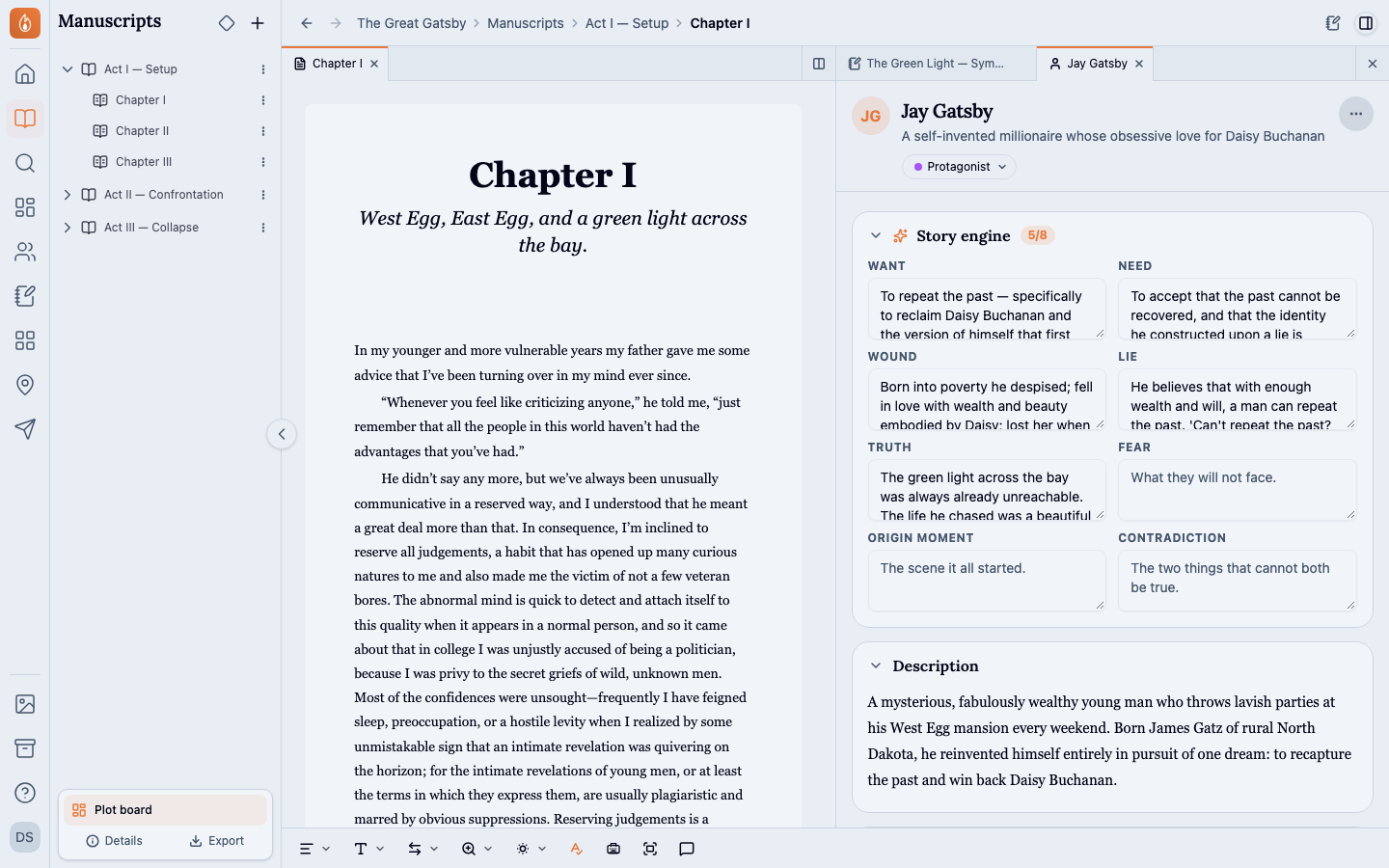
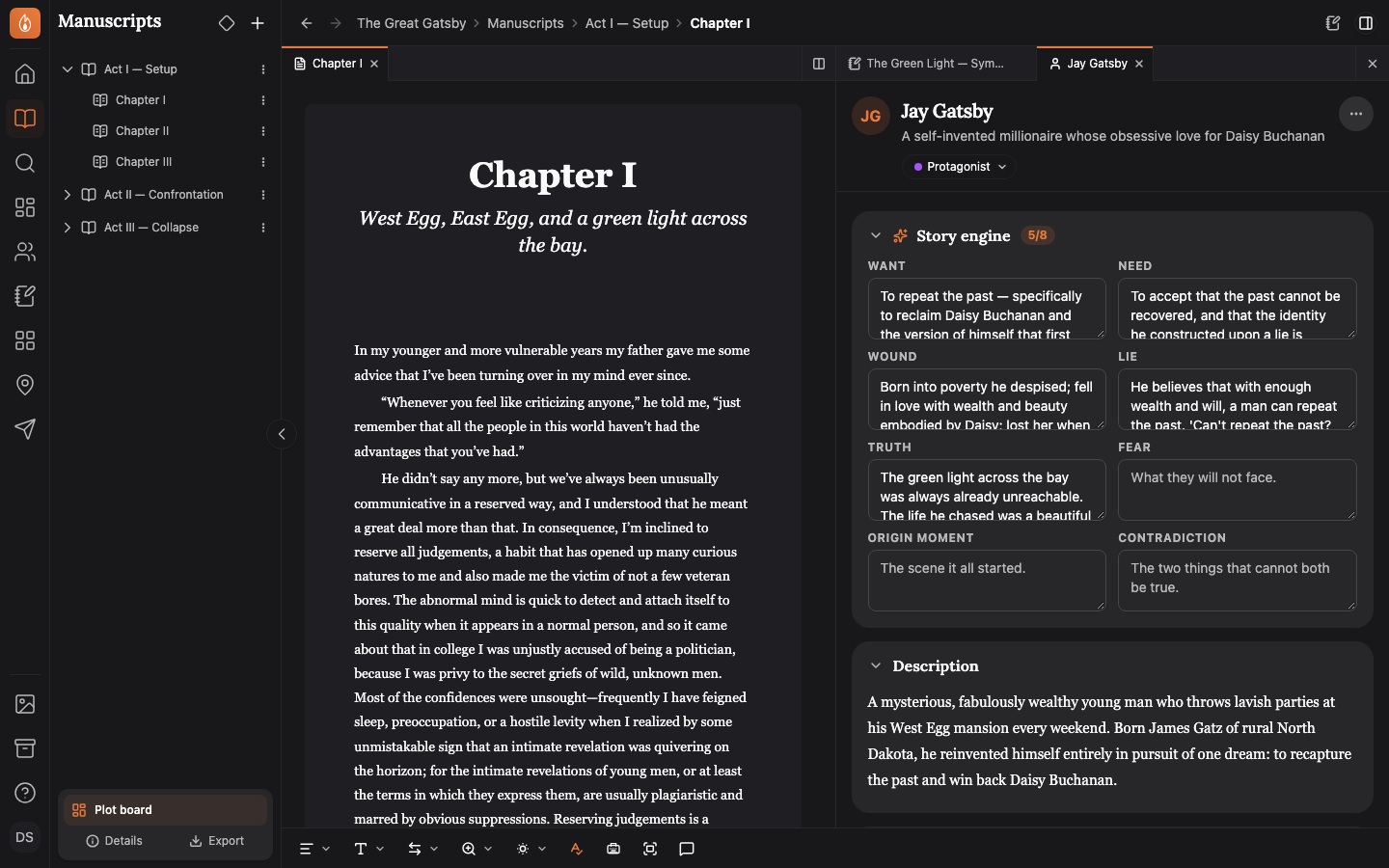
- From a name in your text: click a linked character’s name, then choose Open to the side on its card.
- From the info bar’s In this scene tab: click a character or place, then choose Open to the side on its card.
- From the info bar’s Notes tab: click a note, then choose Open to the side on its card.
- From the look-up: on a manuscript page, press ⌘K (Ctrl+K on Windows), type a name, and press Enter.
- From the sidebar: right-click an item and choose Open in new tab or Open to the side. ⌥-click (Alt-click on Windows) an item to open it to the side.
- By dragging: drag an item from the sidebar onto the editor, on the side where you want it.
Characters, places, notes, and boards can be edited right in their tab. A chapter opens in the full editor.
Books, parts, and a chapter’s details open in tabs too. A chapter’s details and its text are 2 separate tabs.
Switch between tabs and close them
The tab row appears once a second item is open, with your chapter as the first tab. Click a tab to show it. To close one, click its × or click the tab with your middle mouse button.
When the row can’t fit every tab, arrows appear at its ends. A scroll bar shows while you hover over the row.
Close everything except one chapter and that chapter becomes the page again, with no tab row.
Tabs are kept for each project on this device. They’re still open when you come back.
Move a tab
Drag a tab along its row to reorder it, or onto the other side to move it there.
Right-click a tab for a menu with Close, Close others, and Close all. It also has Move left, Move right, and Move to the right side or Move to the main area. For a character, place, note, or board, Go to page opens it on its own page.
Split the editor in two
Click Split editor right, the two-columns button at the end of the main tab row. The tab you’re looking at opens on the right side too, and each side keeps its own tabs. Closing a tab with × closes only that side’s copy.
Open to the side moves a tab that’s already open in the main area. Use Split editor right to keep it on both sides.
To resize the 2 sides, drag the line between them, or click the line and press ← or →. Double-click the line to split the space evenly.
Close the right side, at the end of the right side’s tab row, closes it and its tabs.
Use the sidebar while tabs are open
While tabs are open, the rail’s Characters, Notes, Boards, and Locations buttons switch the sidebar’s list. You stay on your page.
Clicking an item in the list opens it in a tab. Click the list’s title to go to that section’s own page.
Use Focus Mode with tabs open
Focus Mode fills the screen with the chapter or scene you’re writing in. Your tabs stay as they were.
Related
Was this helpful?
Thanks for letting us know.