Format your book
Make an EPUB and a print-ready PDF from your manuscript. Each export keeps its own style and settings, and every file you make.
An ebook or print export turns your manuscript into an EPUB for every ebook store, or a print-ready PDF interior for a KDP paperback or hardcover, in a style you pick and adjust. Each export keeps its own settings and every file you make from it. For a Word document to send an editor, see Exporting to .docx.
Start an export
Open the Export page from your project’s home page: on the Settings tab, under Backups & export, select Export beside Export Manuscript. A book’s own page has an Exports button that opens the exports of that book.
The Export page lists your project’s exports, most recently made or changed first. Select New export, choose Ebook (an EPUB) or Print book (a print PDF), and in a series choose the book, then select Create export. With no exports yet, the choices sit where the list will be.
An export is one file type for one book, so an ebook and a print book are two exports. Every change saves as you make it, and an export opens on Choose a style until you’ve made a file from it, then on Publish. Exports are shared with everyone on the project, and they need a connection.
The flow has three steps: Choose a style, Make it yours, and Publish. Every step is one click away.
Choose a style
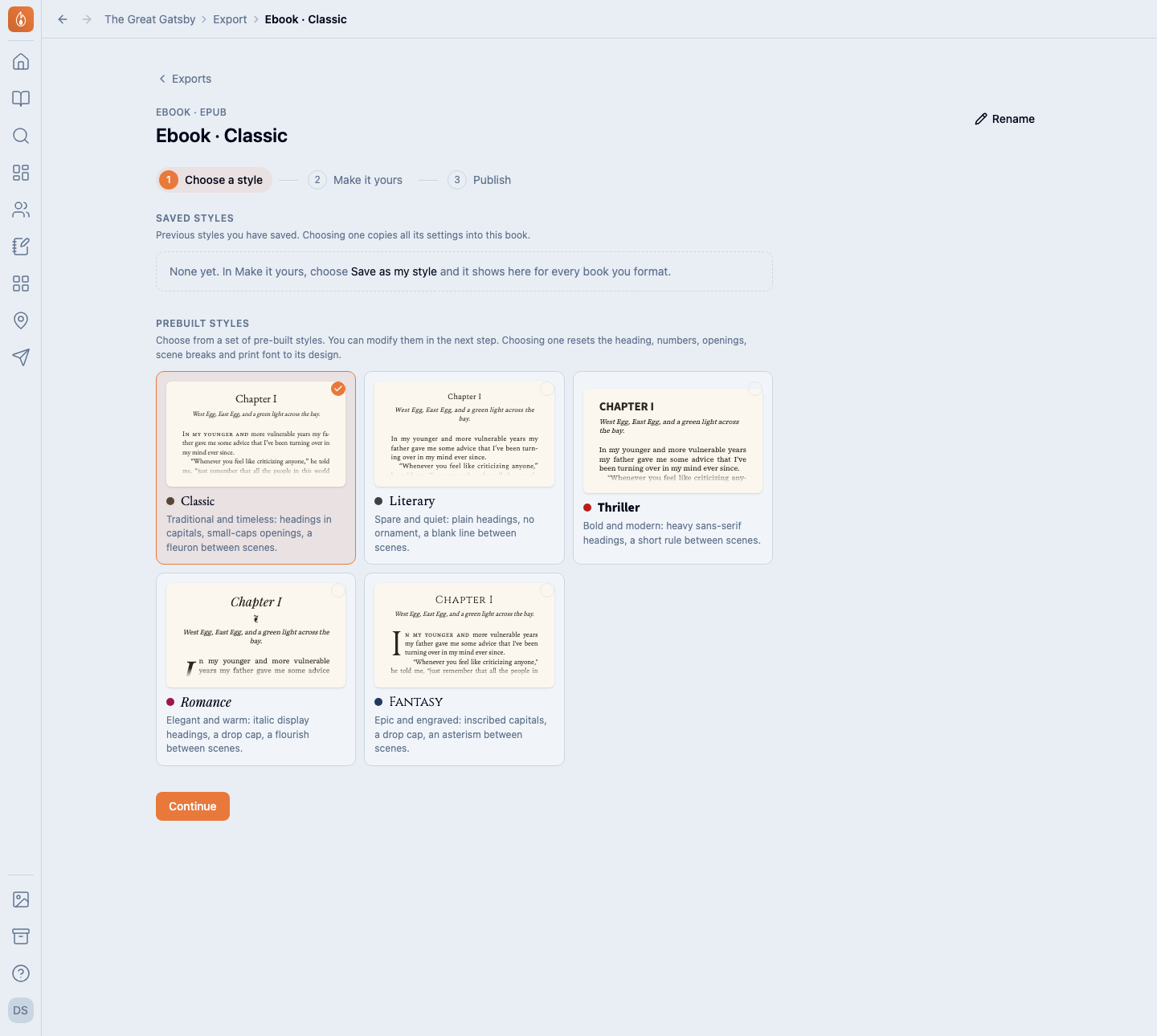
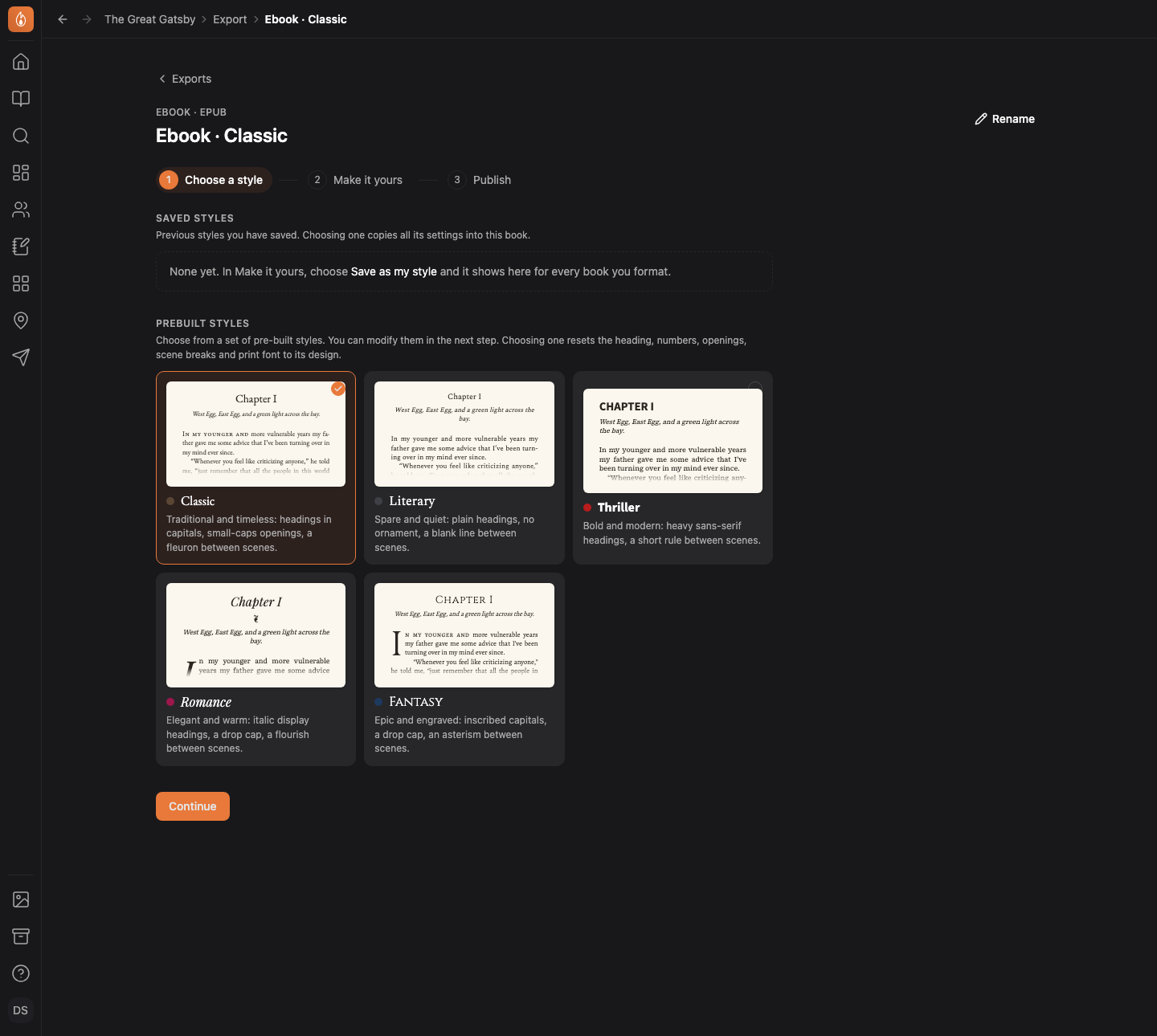
Choose a style draws your own first chapter as a printed page in each of five styles:
- Classic: traditional, with headings in capitals, small-caps openings, and a fleuron between scenes.
- Literary: spare, with plain headings, no ornament, and a blank line between scenes.
- Thriller: bold, with heavy sans-serif headings and a short rule between scenes.
- Romance: elegant, with italic headings, a drop cap, and a flourish between scenes.
- Fantasy: epic, with inscribed capitals, a drop cap, and an asterism between scenes.
Choosing a style resets the heading, numbers, openings, scene breaks, and print font to its design. Your trim size, text size, and the pages we add stay as you set them.
Change how chapters look
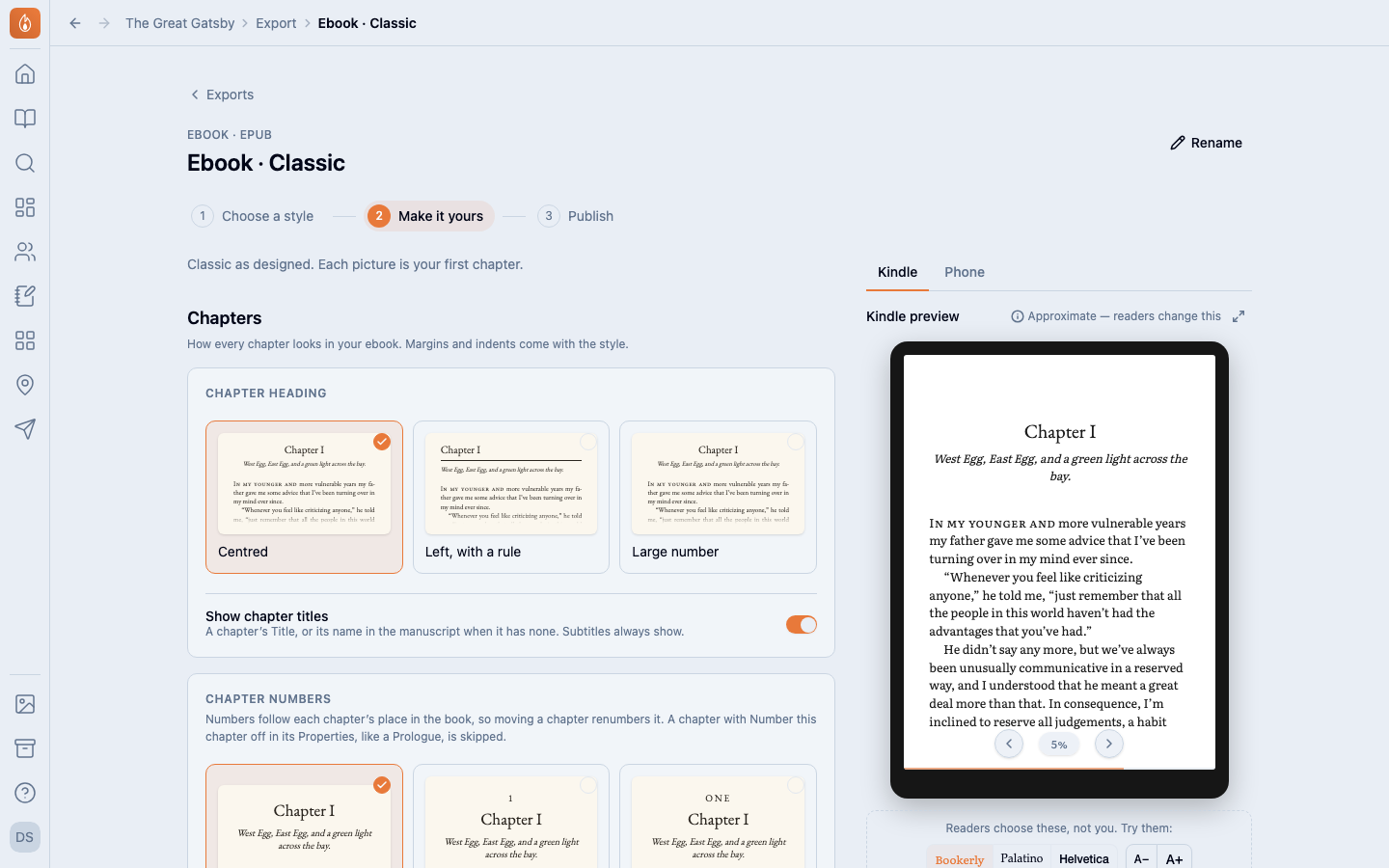
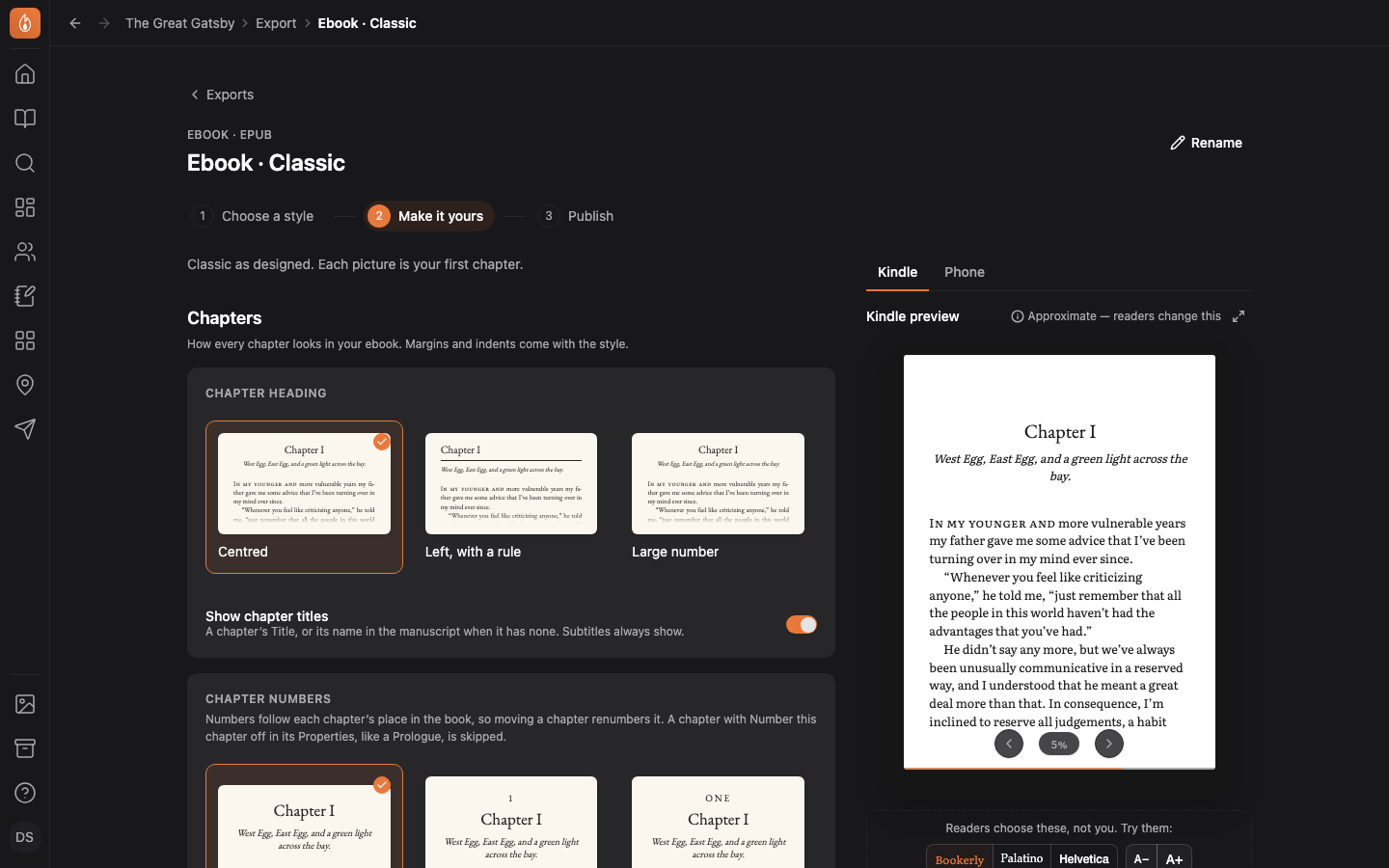
Make it yours holds every setting on one page. Each choice is a picture of your own first chapter. The Chapters group has four panels:
- Chapter heading: three looks, named by the style. Show chapter titles, on by default, prints each chapter’s title, or its name in your manuscript when it has none. Subtitles always show.
- Chapter numbers: No number (the default), 1, One, Chapter 1, Chapter One, or I. Numbers follow each chapter’s place in the book, so moving a chapter renumbers it.
- How chapters begin: Drop cap, Small caps, Both, or Neither. A drop cap opens chapters only. Small caps after every scene break decides whether small caps also start each new scene.
- Scene breaks: Asterisks, Fleuron, Asterism, Flourish, Short rule, or Blank gap. A blank gap is print only. The ebook shows * * * instead, and in print a gap that lands at the top or bottom of a page shows * * * too, since a gap there would disappear.
A panel you’ve changed from the style’s design is marked Changed. Reset to the style’s name puts the chapter settings back and leaves your trim size, font, and text size alone. Margins, indents, and running heads come with the style.
Set the trim size, text size, and font
A print book export has a Print book group:
- Trim size: 5 × 8, 5.5 × 8.5, or 6 × 9 in. Each card shows an estimated page count. Publish counts the real pages.
- Text size: Smaller, Standard, or Larger. Larger text makes a longer book.
- Body font: EB Garamond, Literata, Source Serif 4, Alegreya, or Spectral. Each card sets your book’s first line in that font.
There’s no paper setting. The PDF is the same for cream or white paper, and KDP asks which you want when you upload.
Choose the pages we add
The Pages we add group switches on the pages built from your book’s Publishing details:
- Title pages: on by default. The print book also opens on a half-title.
- Copyright page: on by default.
- Contents in the ebook: on by default, since stores expect one. A print book has Contents in the print book instead, off by default.
- Also in this series: offered when the project has more than one book.
An empty detail is left out rather than printed blank, and a copyright page with nothing filled in reads “All rights reserved.” A note under the switches names what’s empty and links to Fill in Publishing details. Prefer your own? Switch the page off and write a page in your manuscript instead.
Preview your book
A preview sits beside Make it yours and, larger, on Publish:
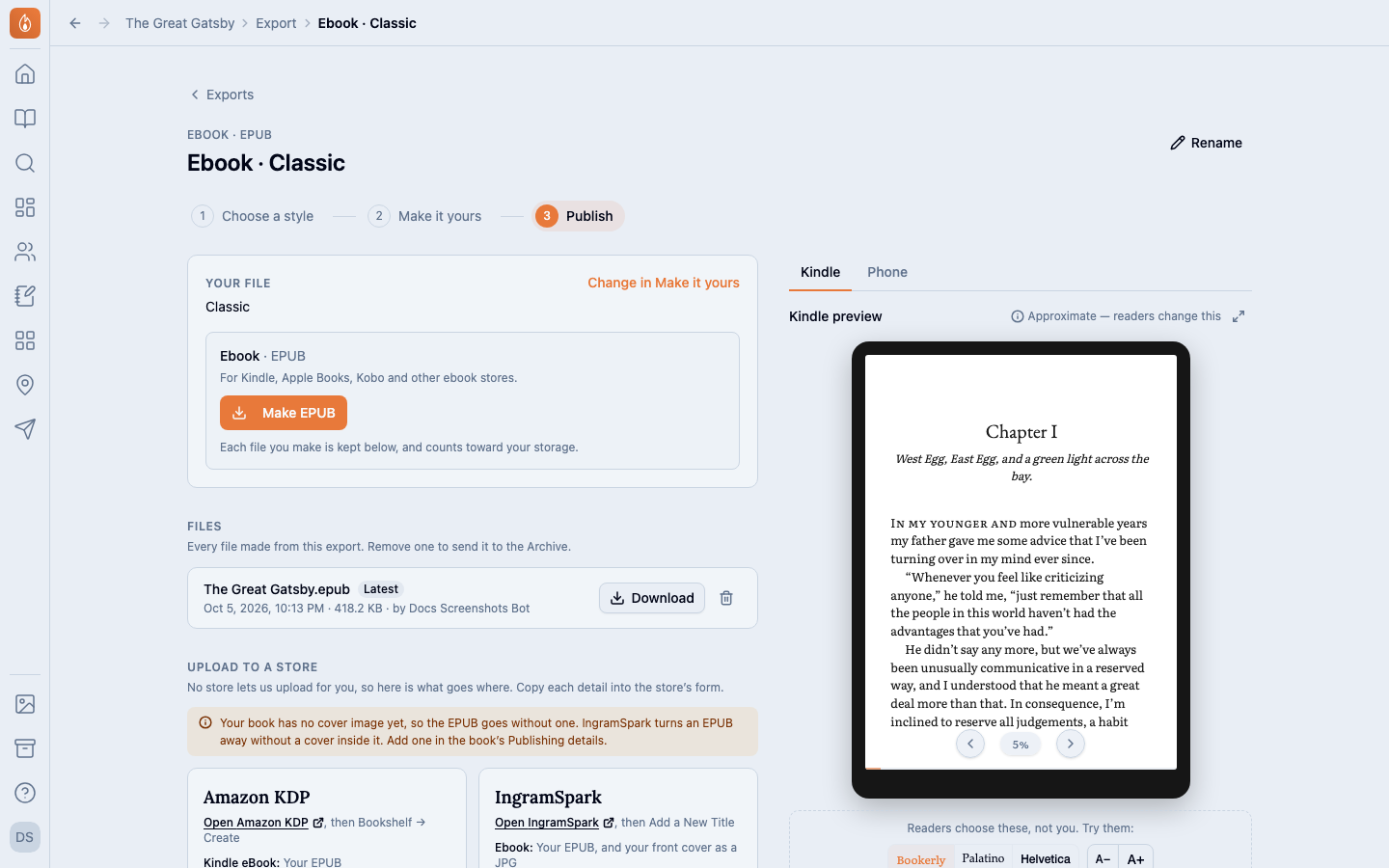
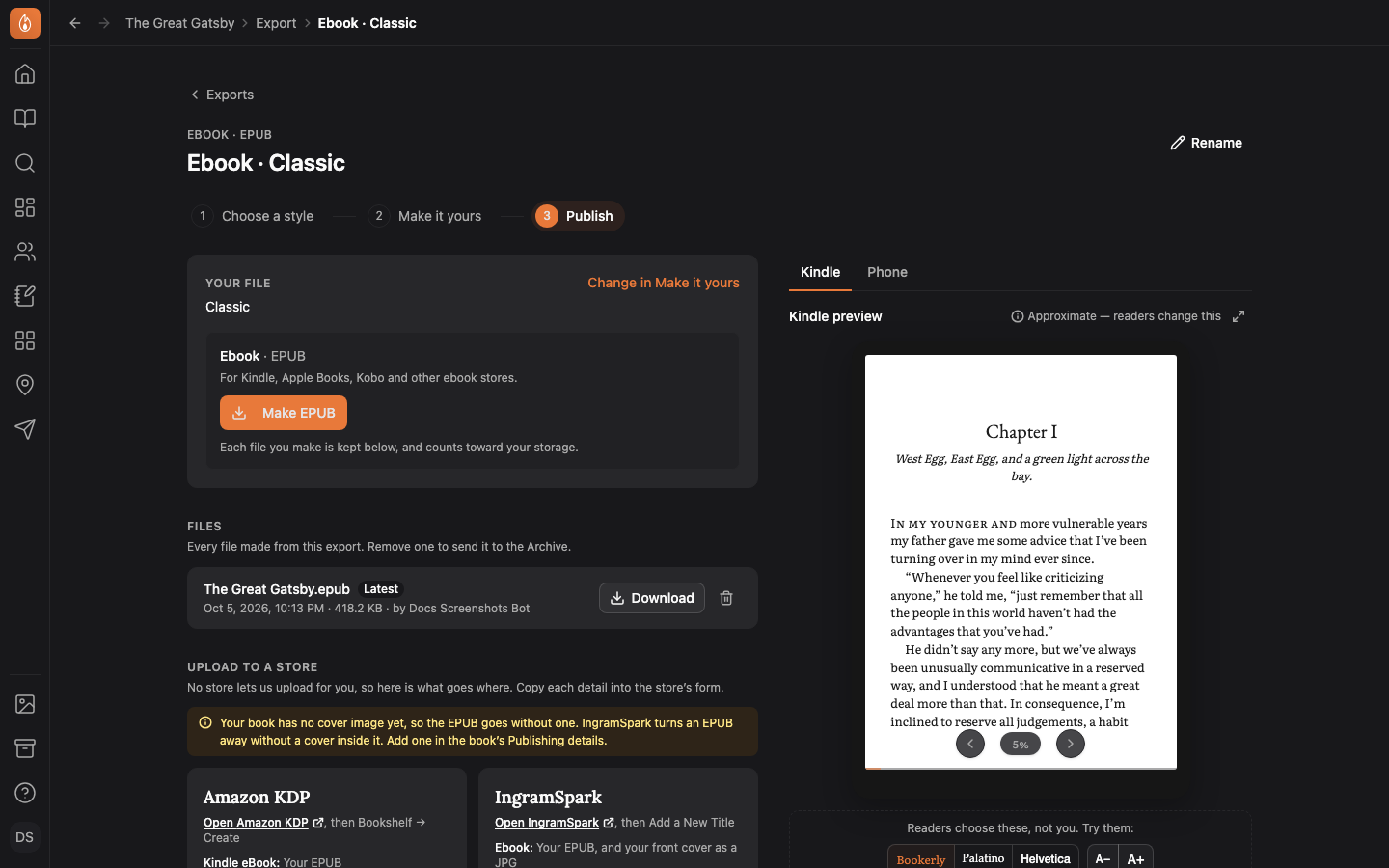
- Kindle and Phone (ebook exports): the start of your book as the EPUB has it, from the title page and contents through your first two chapters, opening on Chapter One. Switch on a page under Pages we add and the preview turns to it. The bar under the device tries the reader’s own settings (font, text size, and page color), which change the body text but never the headings. Readers choose these, not you, which is why the label says “Approximate — readers change this”. Expand shows the device nearly window-high.
- Print (print book exports): the real print PDF as facing pages, rebuilt about half a second after each change. On Make it yours it shows your first two chapters, so it keeps up as you change things. Publish shows the whole book and its exact page count. Use the slider to move through the pages, or Expand to read them nearly window-high. The arrow keys turn pages and Esc closes it.
Make your file
On Publish, Your file names the look your file is built with. Select Make EPUB or Make print PDF: the file is built from the export’s settings, which takes a few seconds for a long book, and it downloads.
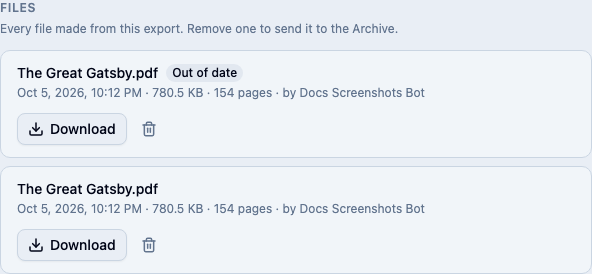
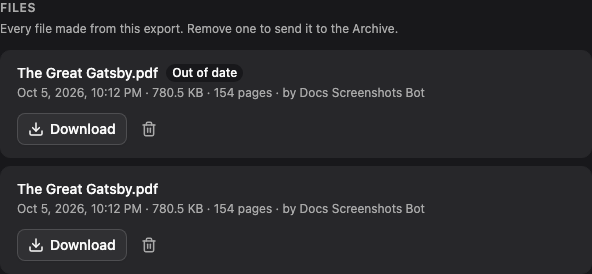
Every file you make is kept under Files, newest first, with when it was made, its size and page count, and who made it. Select Download to get one again. The newest is marked Latest, or Out of date once you change a setting after making it, so you know to make it again. Kept files count toward your storage and are listed in your asset library. Remove one to send it to the Archive, where you can restore it.
Make another export from one you have
On the Export page, Create from this starts a new export with all of one export’s settings. Choose Ebook or Print book, so an ebook’s look becomes a print book’s, and in a series choose another book. The new export opens on Make it yours, ready for the settings its own file needs. Changing it later leaves the first one as it was.
Rename or delete an export
An export is named after its settings, like “Ebook · Classic” or “Print · Classic, 5.5 × 8.5 in”, and the name follows them as they change. Select Rename beside the name to give it your own. Leave the name empty to go back to the one built from its settings.
To delete an export, open its ⋯ menu on the Export page and select Delete. Its settings are deleted, and its files go to the Archive.
Show beta readers the look
A draft round can read in an ebook or print export’s look, so beta readers see your chapter headings and scene breaks before you publish. Pick the export in the round’s Look menu. See Sending a draft to readers.
Save a style to reuse on other books
At the bottom of Make it yours, Save as my style keeps your book’s whole look: the style, every chapter setting, the trim size, text size, and font, and the pages we add. Each book’s own details, like its title and ISBN, aren’t part of it.
Saved styles appear under Saved styles on Choose a style for every export you make. Choosing one copies its settings into the export. After you change something, Make it yours offers Save changes to that style or Save as new style. Each saved style’s ⋯ menu can rename it, update it from the export you’re on, or delete it. Exports that used it keep their settings either way.
How chapter headings and page numbers print
A chapter prints its title, or its name in your manuscript when it has no title, exactly as you wrote it. A chapter named “Chapter I” prints “Chapter I”. If your chapter names already carry a number, keep Chapter numbers on No number so it doesn’t print twice.
Numbers count your chapters in order. Pages never take a number, and neither does a chapter whose Number this chapter is switched off in its Properties, like a prologue, so the chapter after it is still Chapter One. See Leaving a chapter unnumbered. Parts don’t print and aren’t in the contents.
In the print PDF, the pages before your first chapter are unnumbered and the first chapter is page 1. Preview, Acrobat, and Firefox name the pages that way too, while Chrome’s built-in PDF viewer counts from the first page.
Fonts you can publish with
Every font in your exports is released under the SIL Open Font License, so you can publish and sell books set in them. Besides the five body fonts, the styles’ headings use EB Garamond, Spectral, Source Sans 3, Endra Romance (our cut of Playfair Display Italic, renamed as its license requires), and Cinzel, and the ornaments come from Endra Ornaments, a cut of EB Garamond’s fleurons. Each EPUB carries the license for the fonts inside it.
Related
Was this helpful?
Thanks for letting us know.