The Studio tour
A tour of the Studio layout: the sidebar, project home, breadcrumbs, and the sync indicator.
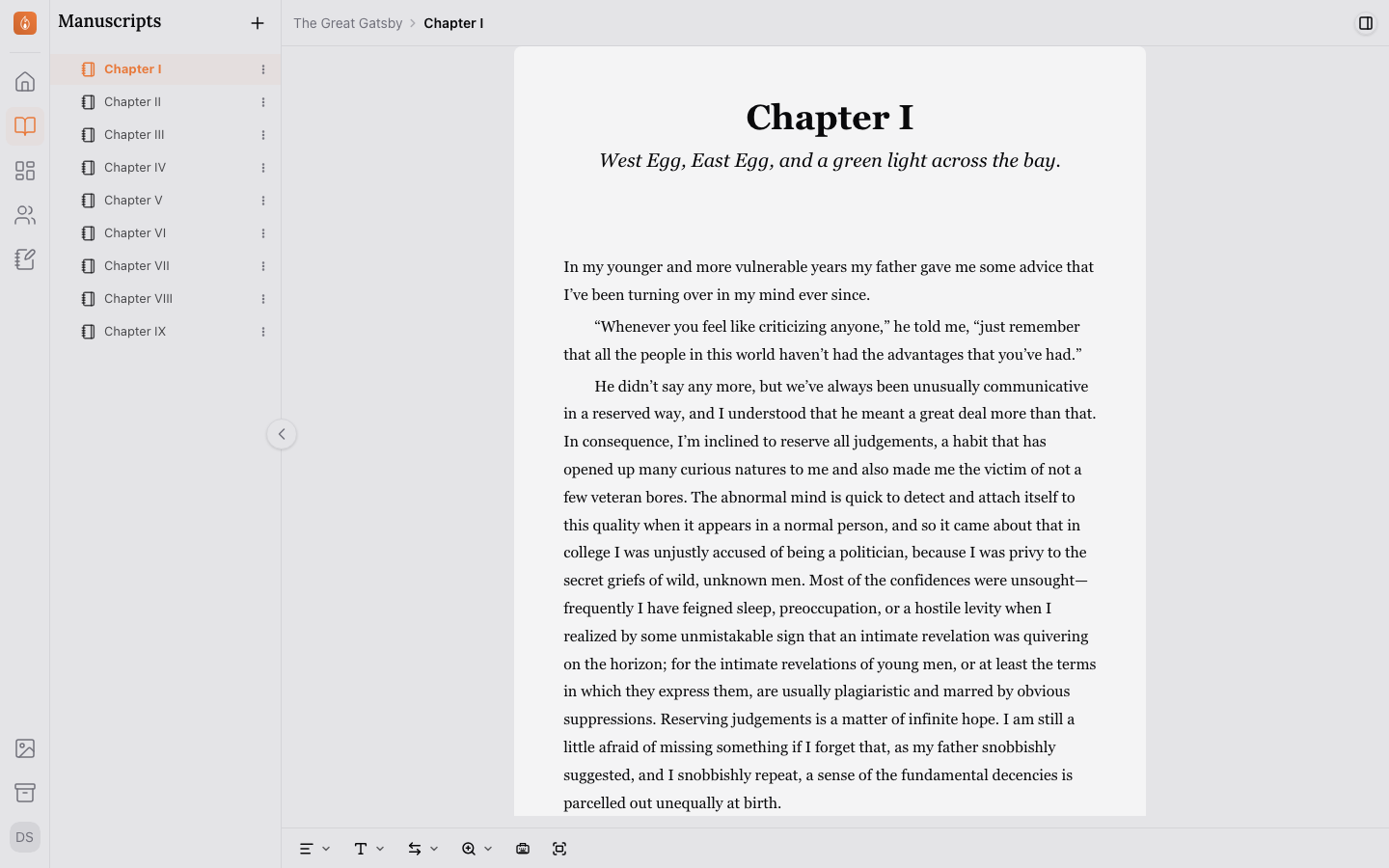
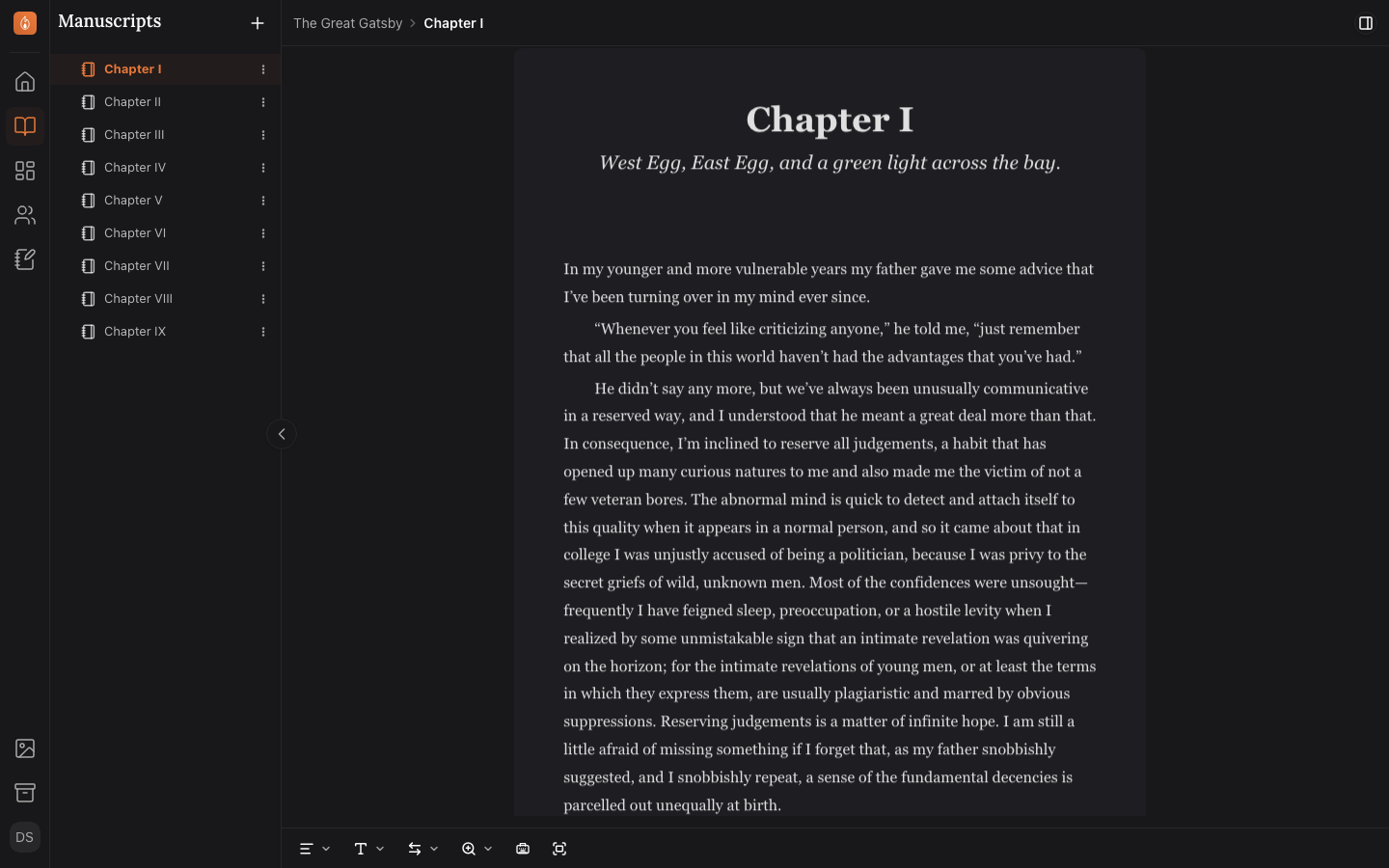
Once you’re inside a project, everything is reachable from the sidebar on the left.
The sidebar
From top to bottom, the sidebar gives you:
- Project Home: an overview of the project, including its title, synopsis, word counts by document, collaborators, and your writing activity.
- Manuscripts: your chapters, sections, and scenes, organized as a tree you can expand, collapse, and reorder.
- Search: find every place a word or phrase appears in your manuscript. It opens in the sidebar in place of the tree. Press ⇧⌘F (Ctrl+Shift+F on Windows) to open it from anywhere in the project.
- Plot: the Plot Board, where your book is laid out part by part, with the beats you planned sitting among the chapters. Switch it to Grid to see the book as a spreadsheet of chapters and subplots.
- Characters: a gallery of every character in the project.
- Notes: your standalone research notebook.
- Boards: open canvases for pinning notes, images, and pieces of your story, and arranging them freely.
- Locations: a gallery of the places in your story.
- Drafts: rounds of your manuscript sent out to editors and beta readers, and the feedback that comes back.
- Assets: the project’s image library.
- Archive: anything you’ve archived, kept around in case you need it back. Restore it or delete it for good, one item or several at once. An archived chapter keeps its scenes with it, so they come back together.
Project home
Project home is where you land when you open a project. It shows the project’s synopsis and settings, a word-count breakdown, and your recent writing activity. Collaborators, snapshots, and export live here too.
In a project you haven’t written in yet, project home shows a single New Chapter button instead. Select it and Endra Studio creates the chapter, with its first scene, and takes you straight into it. If you already have a draft elsewhere, Import a manuscript below the button starts an import into your Manuscripts section.
Breadcrumbs and back/forward
Every page in the Studio shows a breadcrumb trail in the top bar — your project, the section you’re in, and, inside a chapter, character, or other piece of content, the path down to it. Click any part of the trail to jump back up a level.
Back and forward buttons sit to the left of the breadcrumb. They work like your browser’s own back and forward buttons, so they also step you out of the project entirely if that’s where your history goes.
The sync indicator
If your connection drops, an Offline indicator appears in the top bar. You can keep writing; changes are saved on your device. When the connection returns, the indicator switches to Syncing while your offline changes upload, then Synced. Working offline covers what does and doesn’t work without a connection.
Related
Was this helpful?
Thanks for letting us know.