Writing in the editor
Format prose from the selection toolbar, insert images, run slash commands from the keyboard, and write a chapter's scenes together in one scroll.
The editor is where you’ll spend most of your time.
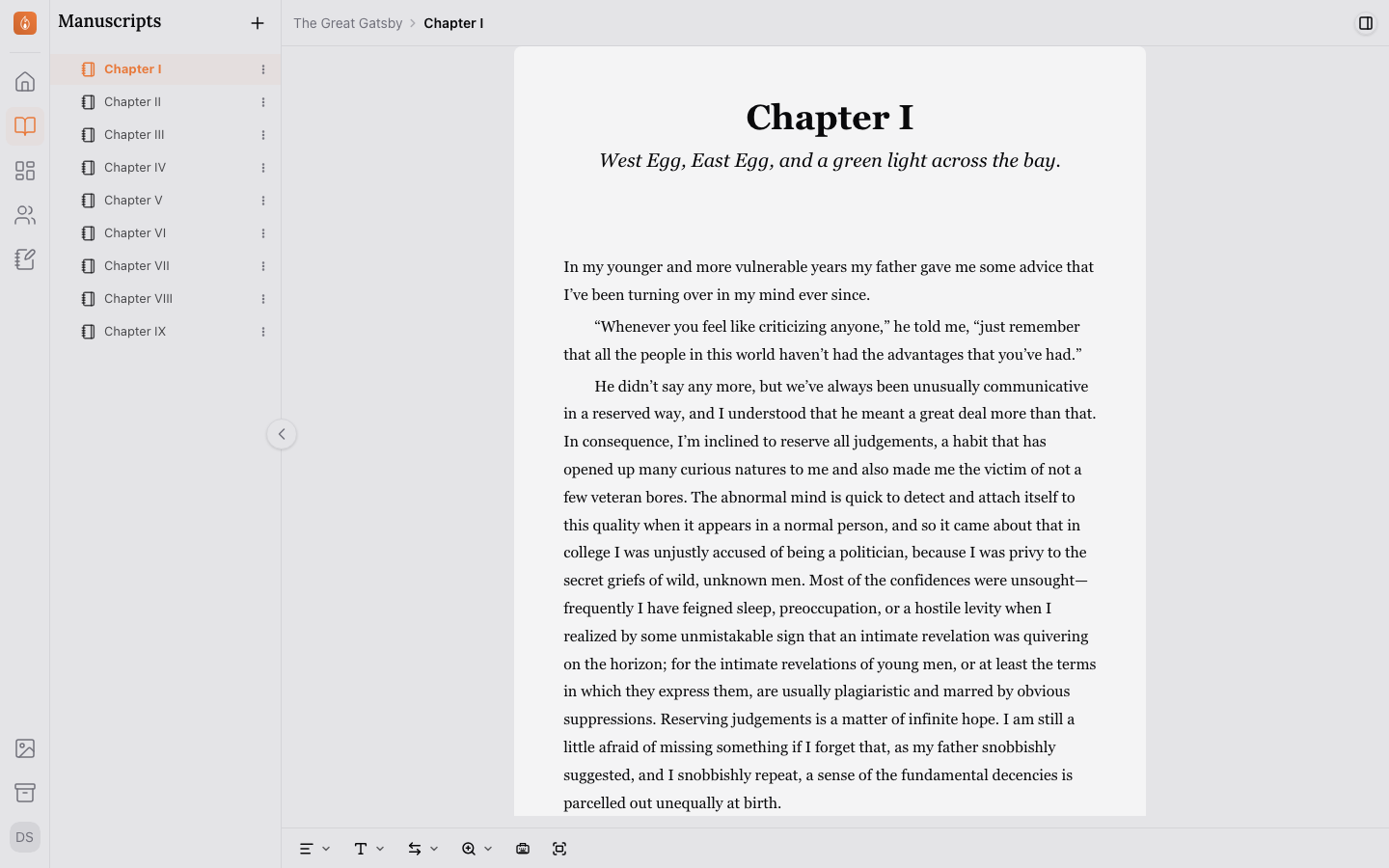
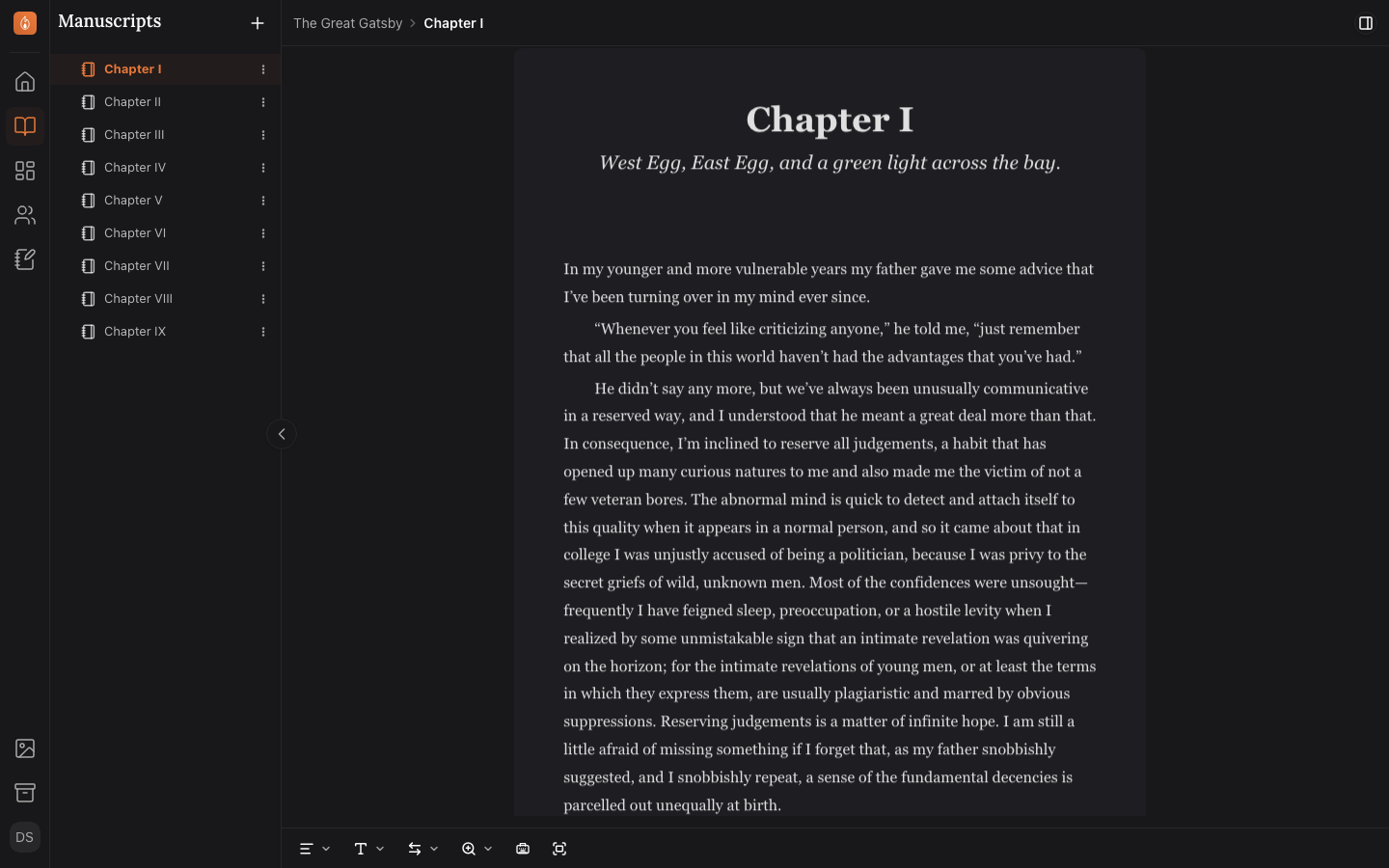
Basic formatting
Select any text to bring up a quick-access toolbar for bold, italic, underline, strikethrough, and highlight colors. Headings, lists, and Passages are available from the same toolbar, or from the slash menu below.
A Passage marks a stretch of text as a blockquote, an epigraph, verse, a letter, or a text message. See Passages: epigraphs, verse, letters, and text messages.
Slash commands
Type / at the start of a line to open a menu of commands. The menu covers headings, lists, each kind of Passage, horizontal rules, and inserting an image.
Mentioning a character
Type @ followed by a character’s name to link them directly from your prose. Once mentioned, that scene shows up on the character’s profile under Scene appearances. See Where a character appears.
Character names also link on their own as you type them, with no @ needed. Use @ for words that don’t link on their own, such as a lowercase alias or a name two characters share. See Characters link themselves as you write.
Click a mention to see which character it links to. From there, Open profile takes you to their page, and Shown as changes the words the mention displays in your text, so a mention of Jay Gatsby can read “Gatsby” or “Jay” and still link to him.
Inserting images
Use the slash menu’s image command, or paste an image directly into the editor, to pull in artwork from your asset library. Images can carry alt text and a description for accessibility and your own reference.
Write a whole chapter at once
Click a chapter that holds two or more scenes and its scenes open together in one scroll, with a *** break between them. This is Whole Chapter View. Each scene still saves on its own, so you can’t select text across two scenes.
To move between scenes, press ⌥⌘↓ for the next scene or ⌥⌘↑ for the previous one (Ctrl+Alt+↓ and Ctrl+Alt+↑ on Windows), or click a scene in the manuscript tree. While you scroll, a column of dashes in the left margin lists the scenes. Point at it and click a name to jump there.
To switch to Individual Scene View, with only the current scene open, select the Chapter view button at the top of the manuscript panel or press ⇧⌘K (Ctrl+Shift+K on Windows). Your cursor stays where it was. The chapter’s synopsis and word goal are under its ⋮ menu → Chapter details.
Saving
There’s no save button. The editor saves automatically as you write, and a Saving indicator shows in the toolbar while it does. If you lose your connection, keep writing; changes sync when you’re back online (see Working offline).
Font, paragraph style, width, and zoom
The typeface, paragraph spacing, editor width, and zoom level you write at aren’t set per document. They’re personal preferences that apply everywhere you write. See Editor preferences to change them.
Related
Was this helpful?
Thanks for letting us know.