Creating your first project
Name your first book on the welcome screen and Endra Studio opens its first chapter, ready to write. Later projects start from New Project on your dashboard.
Every manuscript in Endra Studio lives inside a project. A project holds your chapters, characters, notes, and plot together, so this is the first thing you’ll set up.
Start your first book
When you have no projects yet, your dashboard is a welcome screen with a Start your first book card.
- Give your book a title. Leave it blank and the project is called Untitled.
- Check the Type and Word goal. Picking a type fills in its suggested goal, and you can change either.
- Select Start writing. Endra Studio creates the project and opens its first chapter, ready to type.
If a writing challenge you haven’t joined is running or about to start, you’re asked whether to join it before the book opens. Pick a goal and select Join and start writing, or select Not now to go straight to your book.
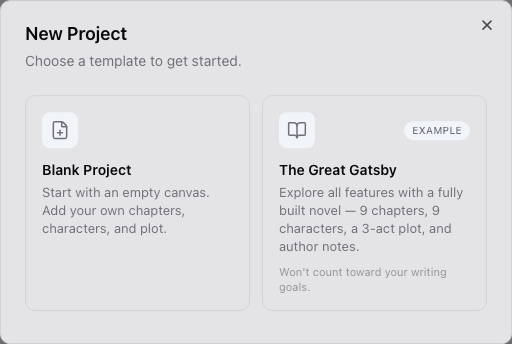
Under the card, three tiles start a book another way. Start with a template and Import manuscript open the new project page with that choice made, and Explore an example project opens a copy of The Great Gatsby.
Create a new project from the dashboard
Once you have a project, your dashboard has a New Project button.
- From your dashboard, select New Project. The new project page opens.
- Give it a title. Blank project is already chosen, so you get a first chapter to write in and no plot board yet.
- Check the Format and Word goal beside the title. The format suggests a goal, and you can change either.
- Select Create project. You’ll land on the project home page, ready to start your first chapter.
Start from a manuscript you’ve already written
If your book already exists in Word, choose Import a draft on the new project page instead of naming a blank project. On the welcome screen, Import manuscript opens that page with Import a draft already chosen. Endra Studio reads the file and creates the project with your chapters already in place. Importing an existing manuscript covers what it accepts and how the structure is worked out.
Try it with an example project first
If you’d rather explore before committing to your own manuscript, choose An example on the new project page to create a copy of The Great Gatsby, a fully built-out project with chapters, characters, locations, and a plot board already in place. Its name appears in the title field, and you can change it before you create. On the welcome screen, Explore an example project creates it straight away. You can delete the project any time.
Words you write in the example project don’t count toward your daily goal, streak, or level. A note in the info bar says so while you’re in it, so start your own project when you want the writing to count.
Related
Was this helpful?
Thanks for letting us know.