Changing how your book looks
How to change chapter headings, numbers, openings, scene breaks, trim size, text size, font, and the pages we add in an ebook or print export, and how they print.
Change how chapters look
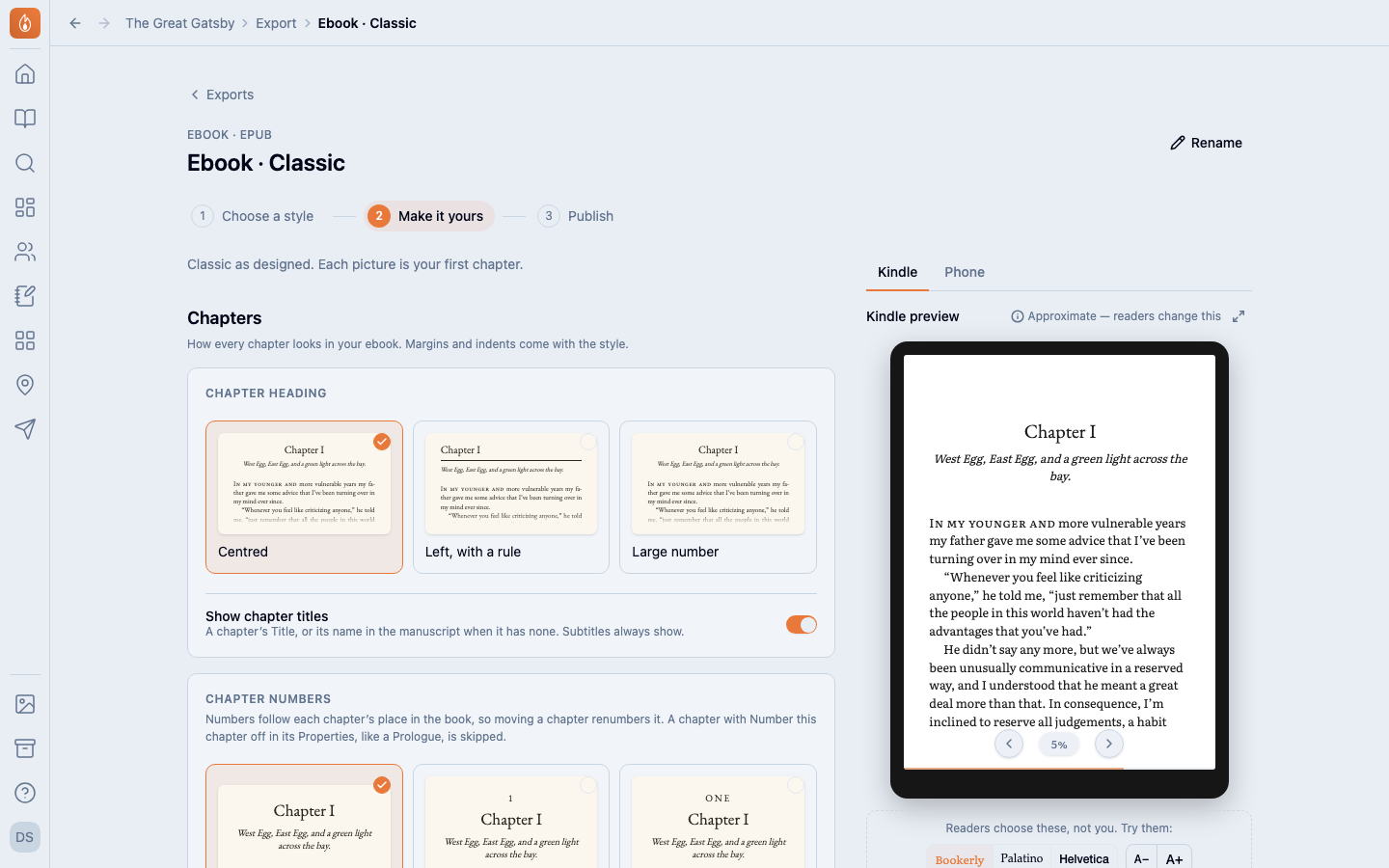
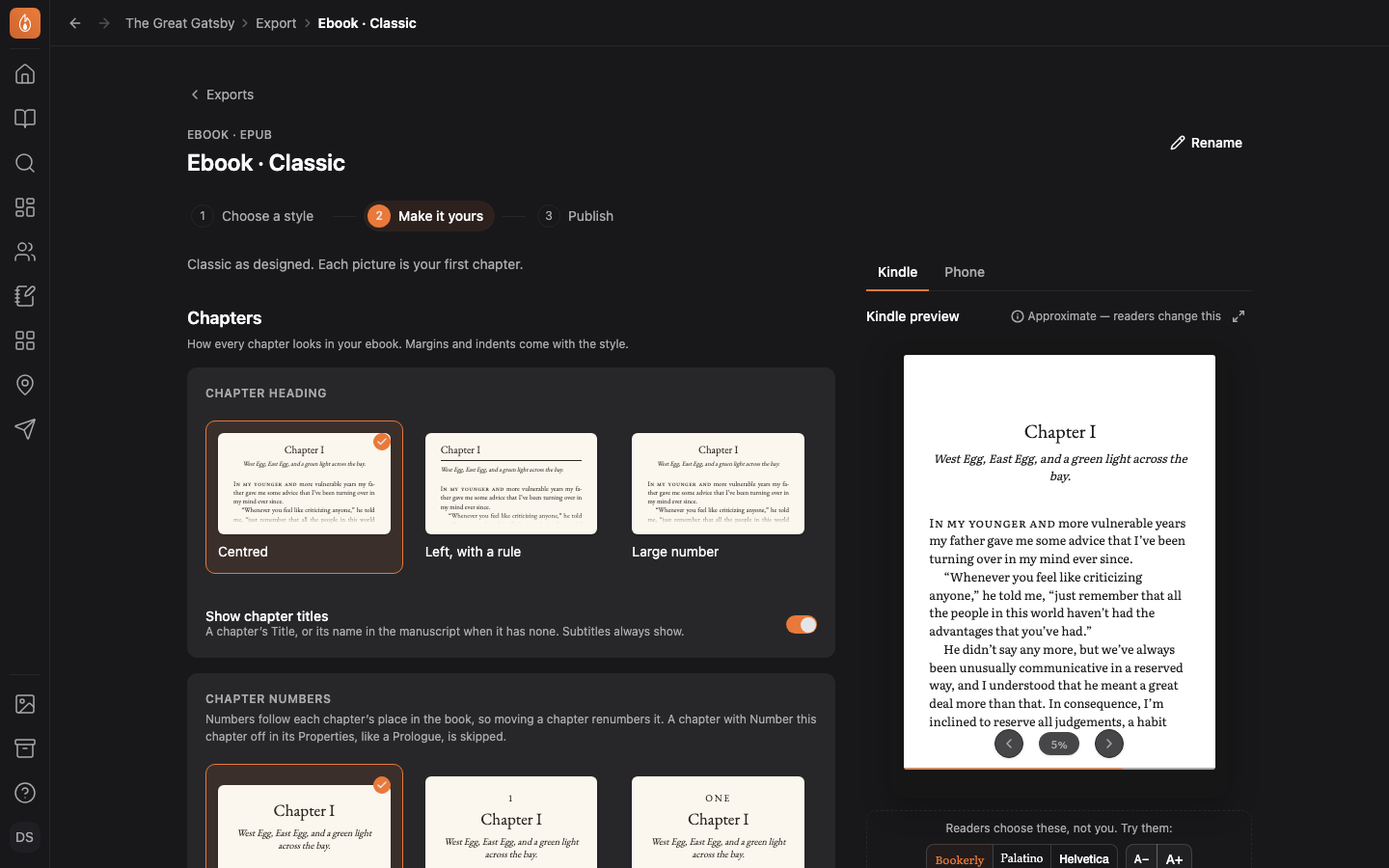
Make it yours is the second step of an ebook or print export. It holds every setting on one page, and each choice is a picture of your own first chapter. Every change saves as you make it.
The Chapters group has 4 panels:
- Chapter heading: 3 looks, named by the style. Show chapter titles, on by default, prints each chapter’s title. Subtitles always show.
- Chapter numbers: No number (the default), 1, One, Chapter 1, Chapter One, or I. Numbers follow each chapter’s place in the book. Moving a chapter renumbers it.
- How chapters begin: Drop cap, Small caps, Both, or Neither. A drop cap opens chapters only. Small caps after every scene break decides whether small caps also start each new scene.
- Scene breaks: Asterisks, Fleuron, Asterism, Flourish, Short rule, or Blank gap. A blank gap is print only, and the ebook shows * * * instead. In print, a gap that lands at the top or bottom of a page also shows * * *.
Margins, indents, and running heads come with the style.
Go back to the style’s design
A panel you’ve changed from the style’s design is marked “Changed”. Select Reset to and the style’s name to put the chapter settings back. Your trim size, text size, font, and pages stay as they are.
How chapter titles and numbers print
A chapter prints its title exactly as you wrote it. With no title, it prints its name in your manuscript. A chapter named “Chapter I” prints “Chapter I”.
If your chapter names already carry a number, keep Chapter numbers on No number. Otherwise the number prints twice.
Numbers count your chapters in order. Pages never take a number. Neither does a chapter whose Number this chapter is switched off in its Properties, like a prologue.
The chapter after an unnumbered one is still Chapter One. See Leave a chapter unnumbered.
Parts don’t print and aren’t in the contents.
Set the trim size, text size, and font
A print book export has a Print book group:
- Trim size: 5 × 8 in, 5.5 × 8.5 in, or 6 × 9 in. Each card shows about how many pages your book will be. Publish counts the exact pages.
- Text size: Smaller, Standard, or Larger. Larger text makes a longer book.
- Body font: EB Garamond, Literata, Source Serif 4, Alegreya, or Spectral. Each card sets your book’s first line in that font.
There’s no paper setting. The PDF is the same for cream or white paper, and KDP asks which you want when you upload.
Fonts you can publish with
Every font in your exports is released under the SIL Open Font License. You can publish and sell books set in them.
Besides the 5 body fonts, the styles’ headings use EB Garamond, Spectral, Source Sans 3, Endra Romance, and Cinzel. Endra Romance is our cut of Playfair Display Italic, renamed as its license requires.
The ornaments come from Endra Ornaments, a cut of EB Garamond’s fleurons. Each EPUB carries the license for the fonts inside it.
Choose the pages we add
The Pages we add group switches on pages built from your book’s Publishing details:
- Title pages: on by default. The print book also opens on a half-title.
- Copyright page: on by default.
- Contents in the ebook: on by default. A print book has Contents in the print book instead, off by default.
- Also in this series: shows when the project has more than one book.
An empty detail is left out, not printed blank. A copyright page with nothing filled in reads “All rights reserved.” A note under the switches names what’s empty and links to Fill in Publishing details.
To use your own page instead, switch the page off and write a page in your manuscript.
How page numbers print
In the print PDF, the pages before your first chapter are unnumbered, and the first chapter is page 1. Preview, Acrobat, and Firefox name the pages that way too. Chrome’s built-in PDF viewer counts from the first page.
Related
Was this helpful?
Thanks for letting us know.