Mapping your story on the Plot Board
The Plot Board draws your book as columns, one for each part, holding your chapters, their scenes, and the beats you planned.
The Plot Board is a picture of your book. Each part is a column, the chapters run down it in the order they read, and the beats you planned sit among them.
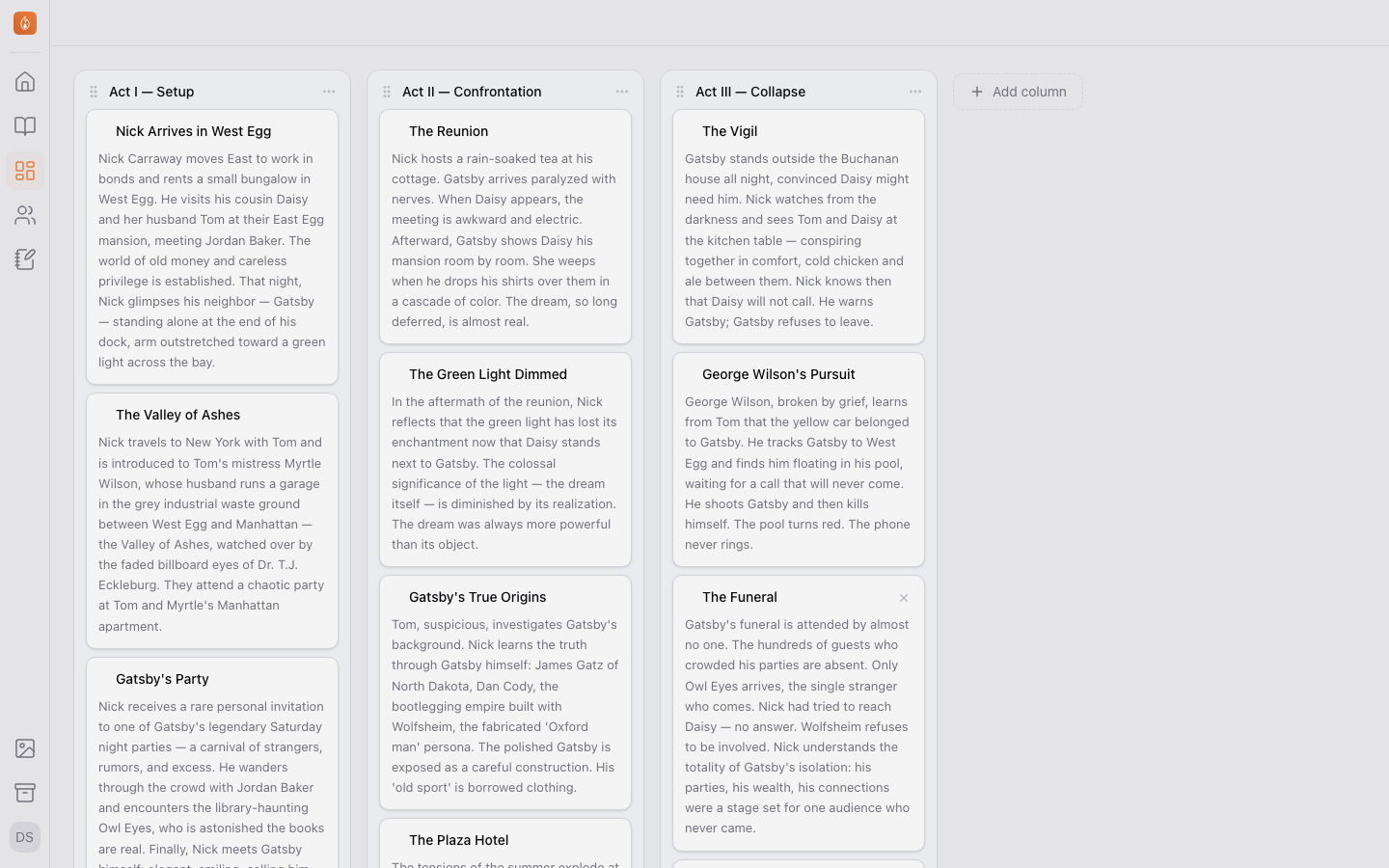
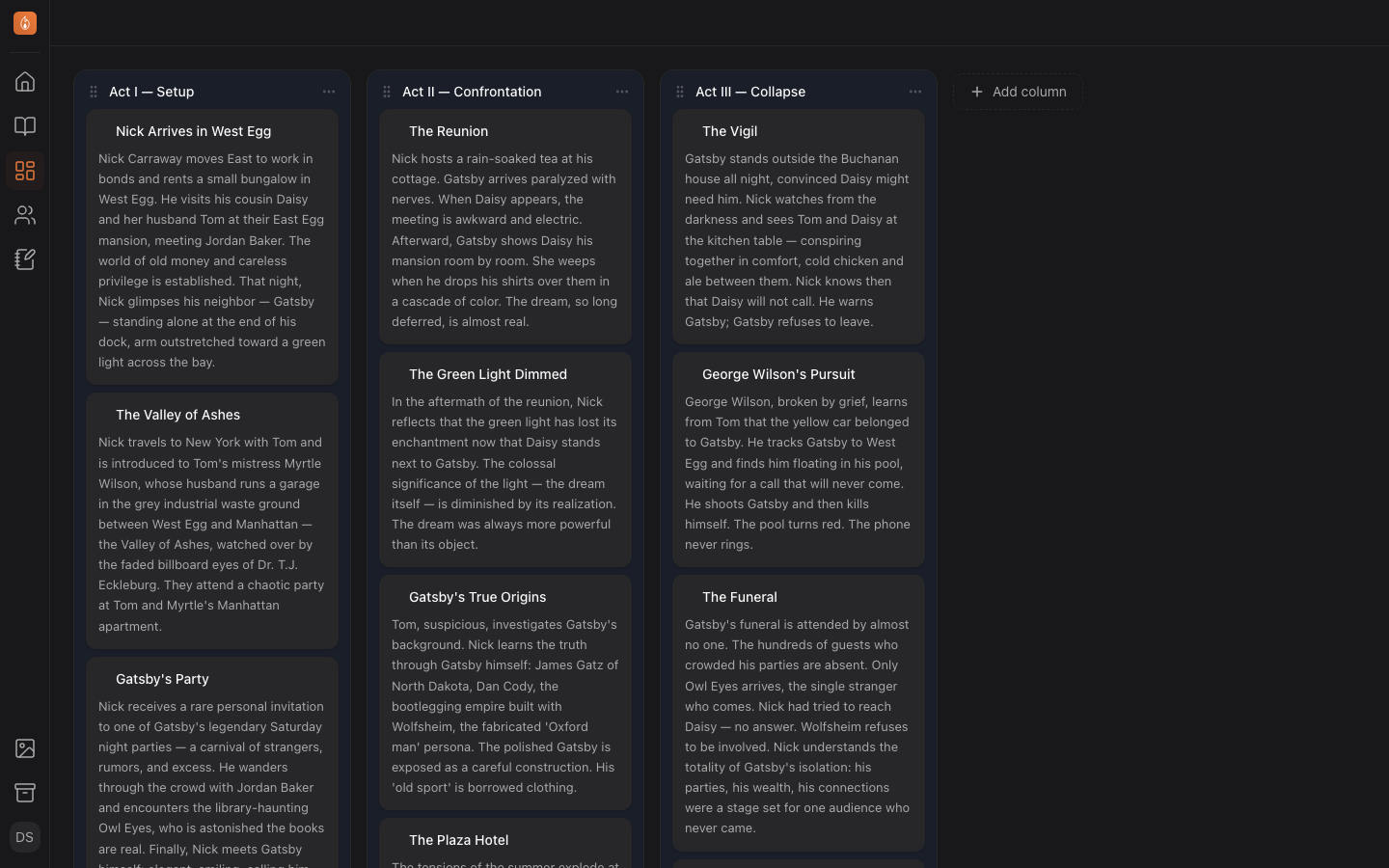
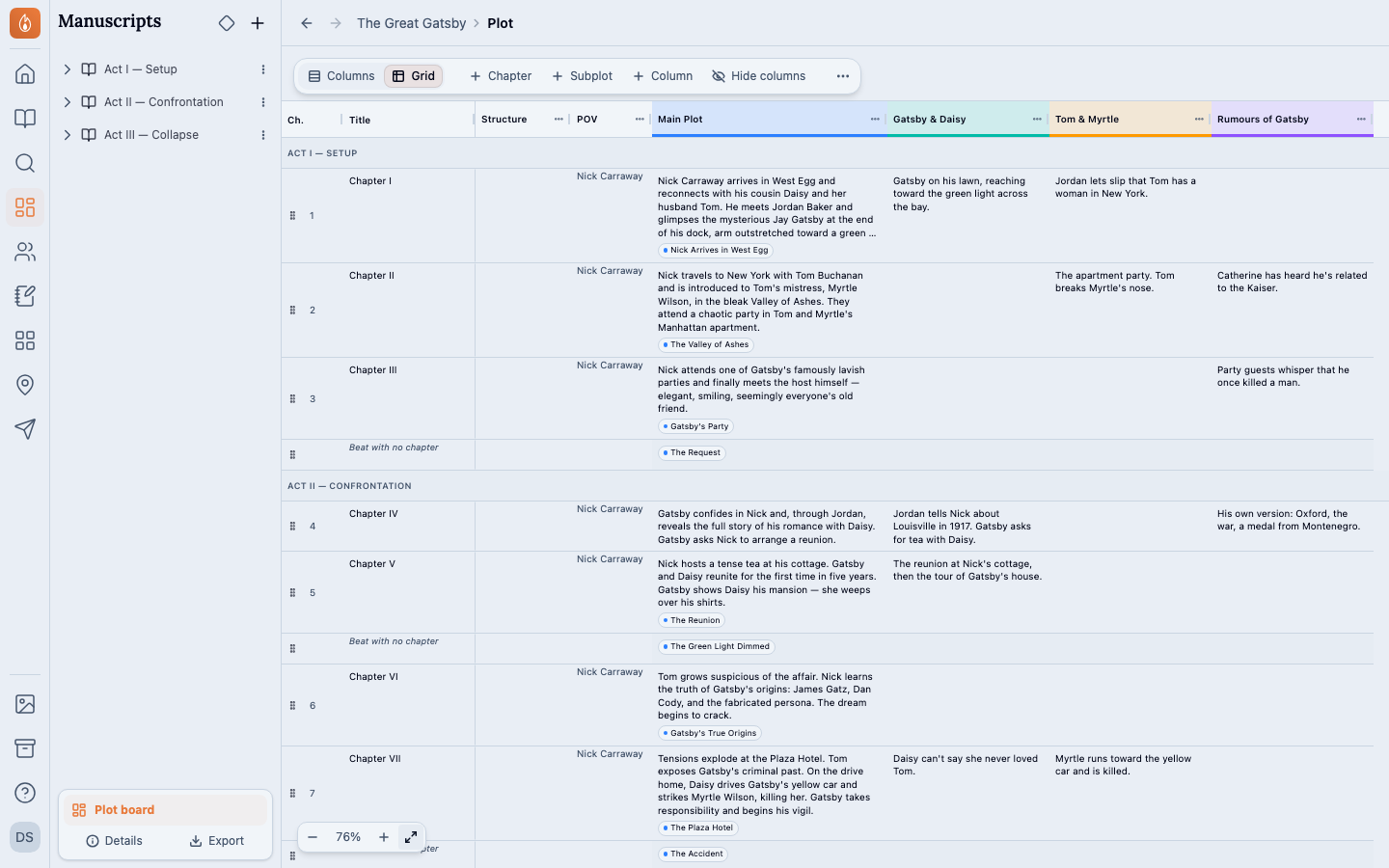
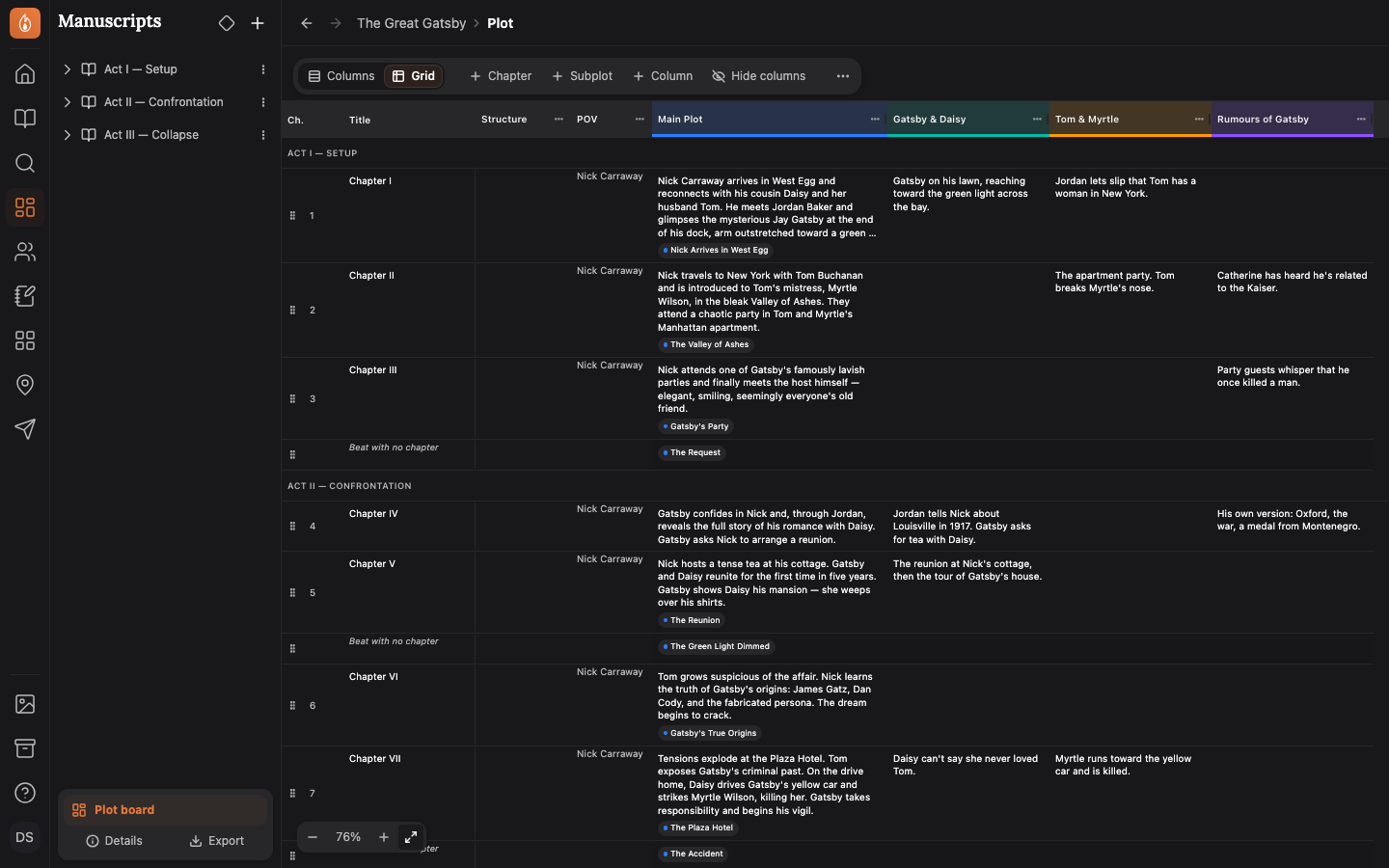
This is the board’s Columns view. Its Grid view, picked from the switch at the left of the toolbar, lays the same book out as a spreadsheet instead: a row for each chapter and a column for each subplot. See Choosing what the board shows.
What’s on the board
- A column for each part. A book with no parts gets one column called The book. Once you have parts, any chapter still outside them collects in a column called Not in a part.
- A card for each chapter, with its scenes listed underneath.
- A card for each beat you haven’t filed anywhere yet, sitting where you expect it to happen.
The board keeps no order of its own. It reads your manuscript, so a card you move here moves in the manuscript, and a chapter you reorder in the binder moves here.
Add a chapter, a beat, or a part
Every column header has a Chapter button and a Beat button, and both add to the end of that column. A new chapter arrives with its first scene already in it, and names are filled in for you: “Chapter 4”, “Beat 2”. To add a scene to a chapter you already have, use the Scene button on its card.
Add part sits past the last column and starts a new part after everything else in the book. A part groups chapters into an act; it isn’t a page in the finished book. See Organizing chapters, sections, and scenes.
Beats are made here. The manuscript binder’s + menu doesn’t offer one, because a beat only makes sense next to the chapters it’s a plan for.
Open a card
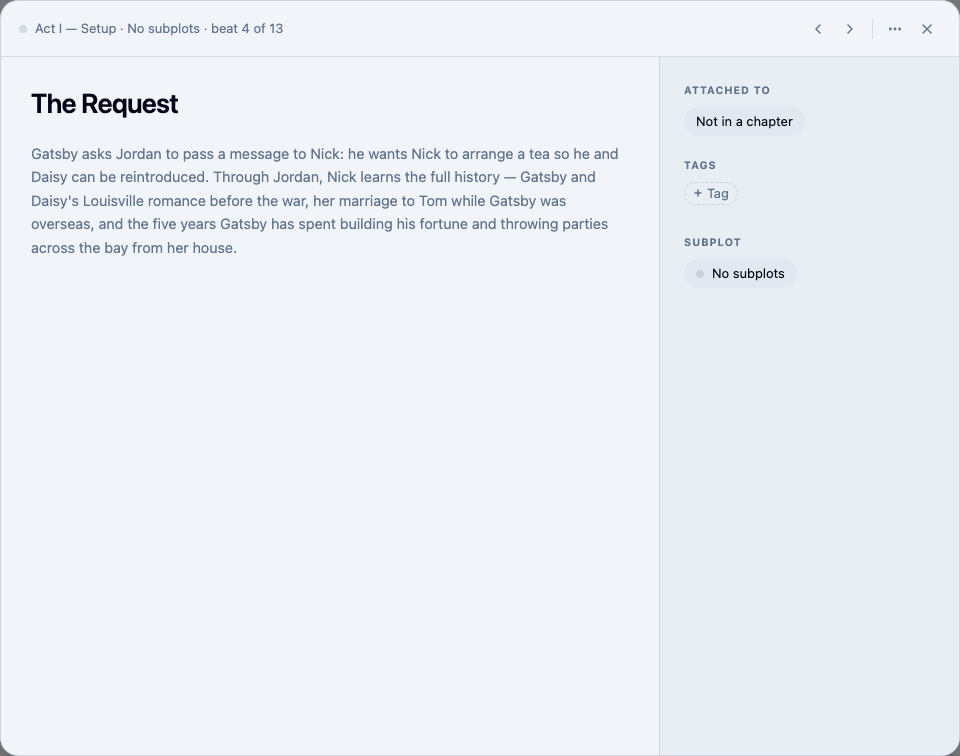
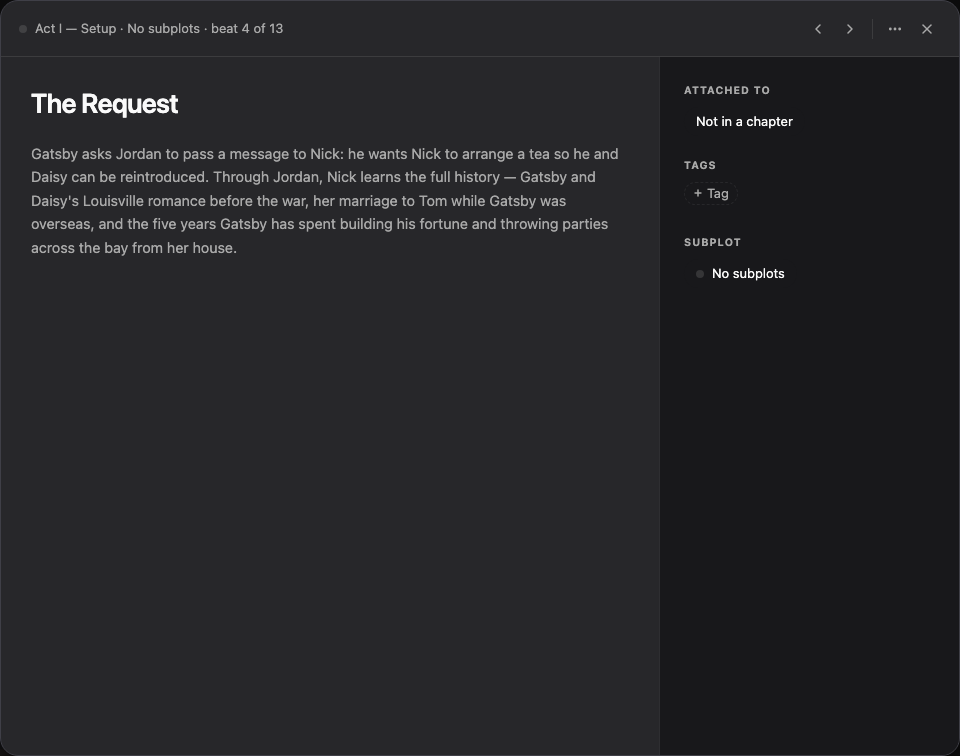
Select a card’s title to open it over the board, with room to name it and say in one line what happens in it, plus its tags and its subplot. A chapter also lists its scenes, and a beat shows what it’s attached to. Arrows at the top step to the previous and next card in the book. Nothing here navigates away, so you keep your place.
Show a chapter’s scenes
A chapter card lists its scenes as rows. The chevron beside the title shuts the card down to a bar and opens it again. A chapter with only one scene has no chevron and doesn’t list that scene, because a one-scene chapter is that scene.
When the board is empty
A book with no chapters and no beats shows a card headed Plot instead of an empty column. Start from a structure lays down a known story shape; Create your first beat puts a single beat on the board to start typing into. See Starting from a structure.
Related
Was this helpful?
Thanks for letting us know.