Building a character profile
Give every character a profile with aliases, role, appearance, and voice notes, plus an avatar and header image designated from their gallery.
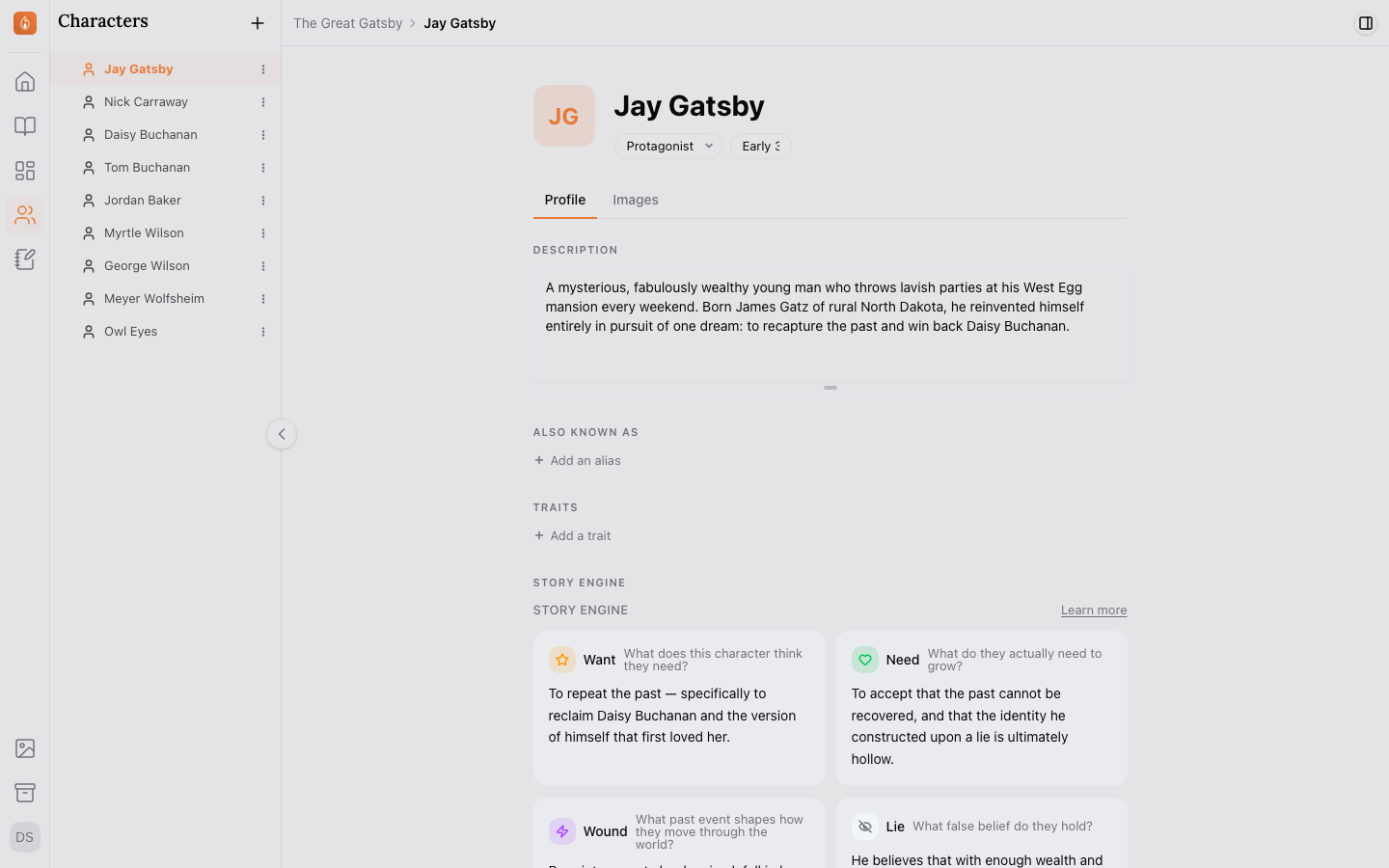
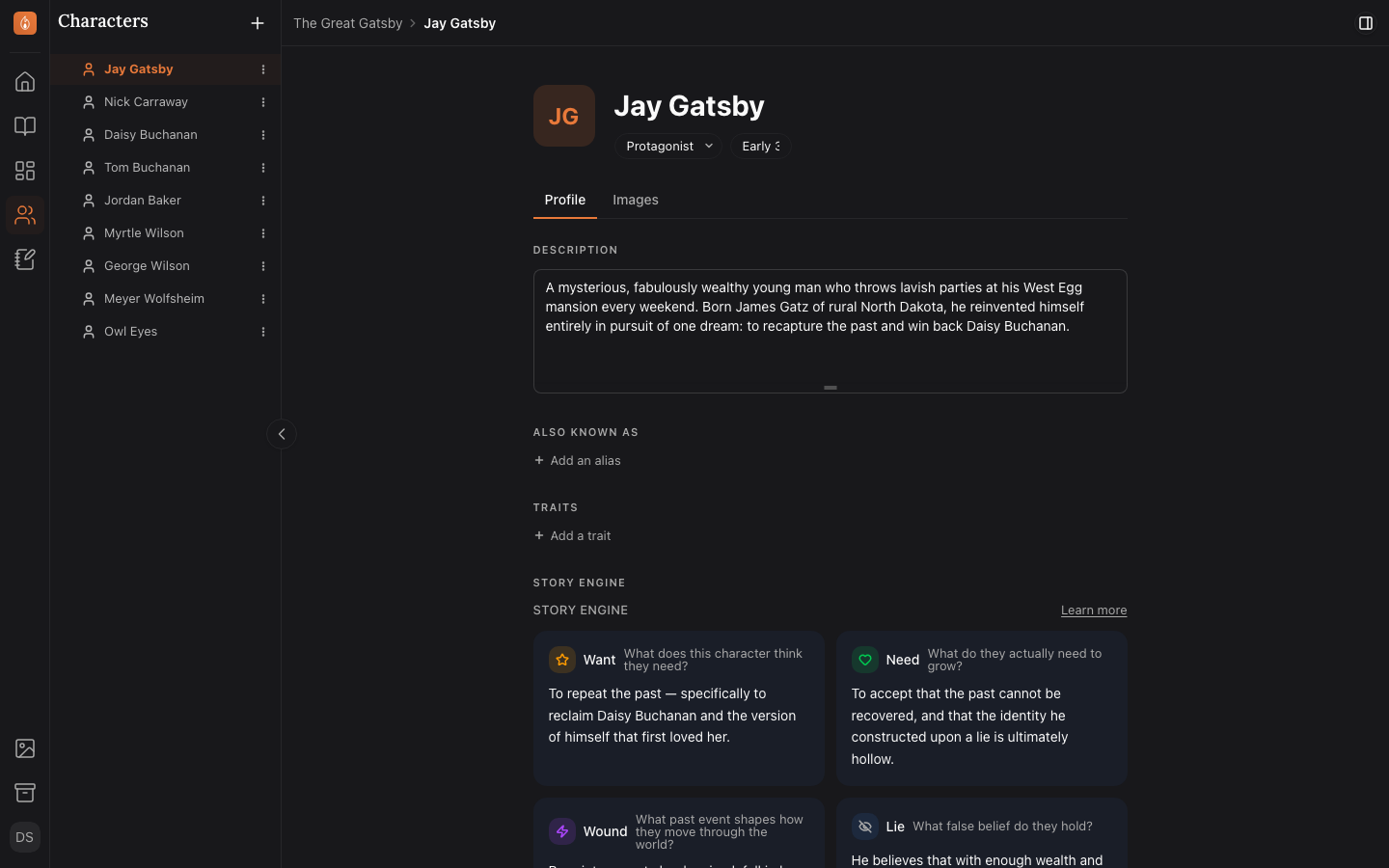
Every character in your project gets their own Character Canvas, a single page for everything you know about them.
Creating a character
From the Characters gallery in the sidebar, select New Character to open a blank canvas. Give them a name to start, then fill in the rest whenever you have it. Nothing is required up front.
Fill in a character’s details
- Basics: aliases, role in the story, age, physical appearance, and voice notes (how they talk, verbal tics, vocabulary).
- Avatar: the image that stands for this character, shown on their canvas and in the character gallery.
- Header image: an optional background image behind the canvas header, with the avatar shown on top of it. Leave it unset and the header stays a plain row.
- Notes: a free-form field for anything that doesn’t fit elsewhere.
- Arc: the beats of their story, in order, pulled from the Plot Board. It fills itself in when a subplot on the board is pointed at this character, and each beat links back to itself on the board. Edit beats on the Plot Board; the Arc list here is read-only.
Every field saves as you type, about 2 seconds after you stop, and right away when you click out of it. If you refresh or close the tab before a change has saved, your browser asks before leaving.
Choosing the avatar and header image
Set either one two ways. Click the avatar, or open the ⋯ menu beside it and choose Add header image — both open your asset library. Or set them from the character’s own Gallery block, where every image carries a Set avatar and a Set header action.
Either route puts the image in the Gallery, so that block always holds every image the character uses. The one in use is marked Avatar or Header, and a single image can be both.
Archiving an image from the gallery clears the avatar if that image was it, but leaves the header image in place — the canvas keeps showing it. The archive prompt says so when it applies.
Related
Was this helpful?
Thanks for letting us know.