Organizing chapters, sections, and scenes
Build your manuscript as a tree of folders, chapters, and scenes. Reorder by dragging or from the item's own menu, nest freely, and see word counts at every level.
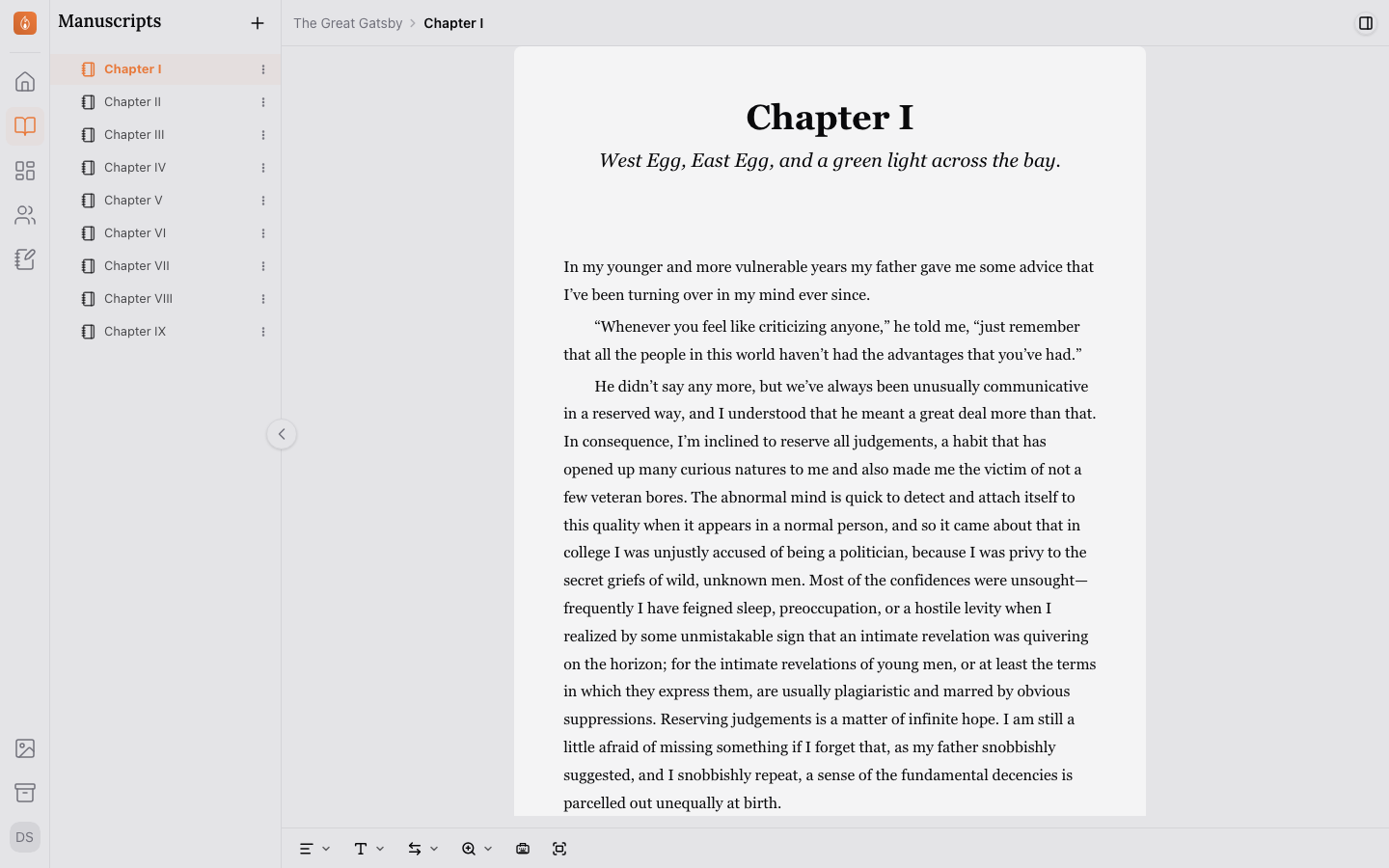
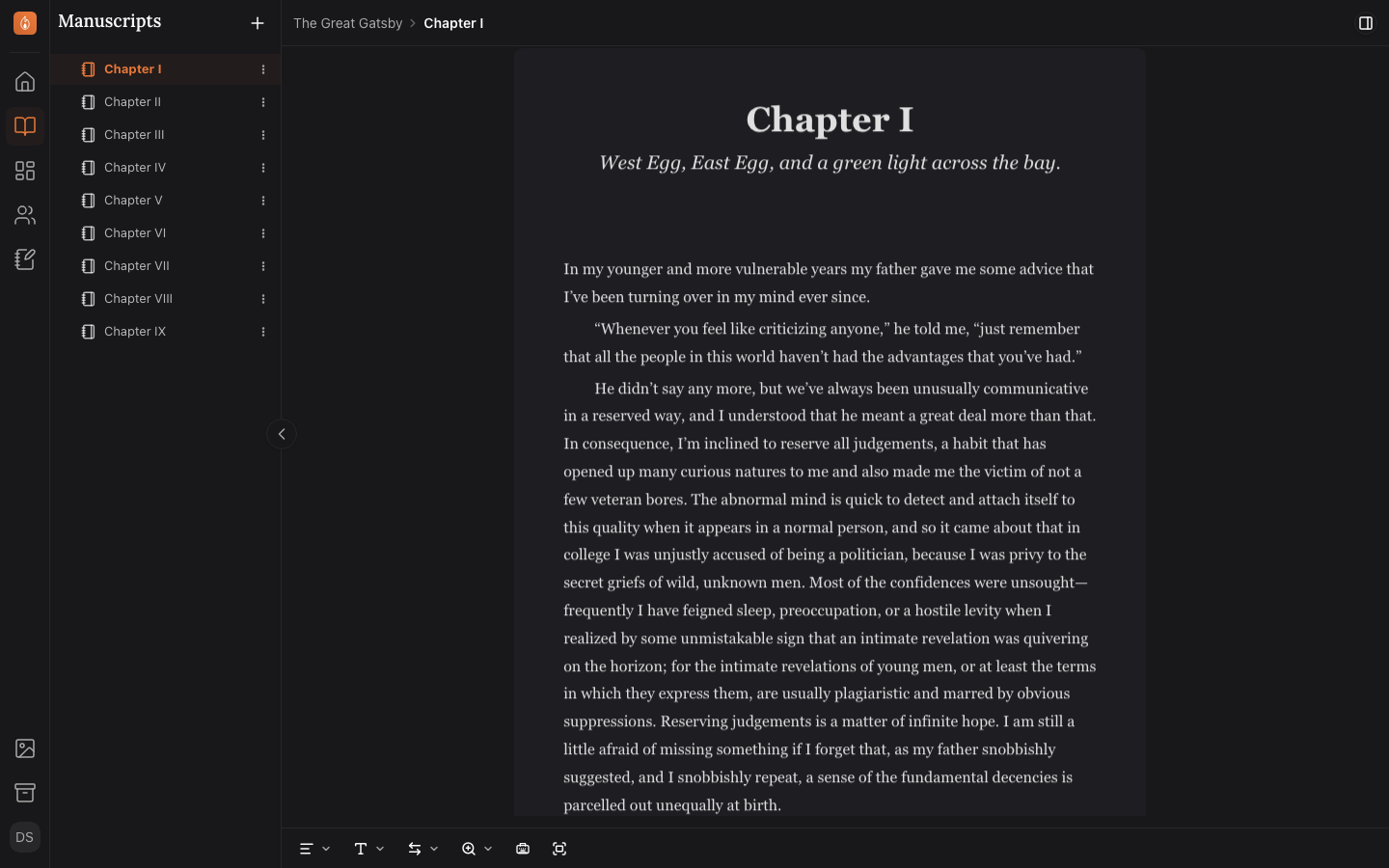
Your manuscript in Endra Studio is a tree. Chapters can hold sections, sections can hold scenes, and you can nest as deep as your structure needs.
Adding a chapter, section, or scene
From the Manuscripts panel in the sidebar, select the + button to add a new item at the top level, or open an existing item’s ⋮ menu to add one next to it or inside it.
A name box appears in the tree, already filled in with a suggested name like “Scene 3”. Type over it and press Enter to create the item, or press Escape to back out. Clicking anywhere else also accepts the name as typed. The new item starts empty and opens straight into the editor.
Chapters can also arrive from a Word or text file. The same + button offers Import from a file…, which adds the file’s chapters at the end of your manuscript. See Importing an existing manuscript.
Reordering and nesting
Drag any chapter, section, or scene to move it:
- Drop it before or after a sibling to reorder at the same level.
- Drop it onto another item to nest it inside as a child.
There’s no limit on nesting depth. Some writers use only chapters and scenes; others nest parts, chapters, and scenes three levels deep.
Moving without dragging
Every item’s ⋮ menu has a Move section that does the same job:
- Move up and Move down shift it one place among its neighbours.
- Move out of… lifts it out of the chapter, part, or section holding it, and drops it directly below.
- Move to… lists every place the item is allowed to live, however far away. Pick one and it goes there.
The menu opens with the keyboard as well as the mouse, so you can rearrange a manuscript without a drag gesture. Anything the tree won’t allow is grayed out or absent rather than offered and refused.
Grouping chapters into parts
A part groups chapters into an act or an arc. It shapes the binder and the Plot Board, and that is all it does: parts don’t print. Dividing a book into acts changes nothing in the exported manuscript, so if you want a “PART ONE” page in the finished book, write it yourself. Before your first chapter, make it a chapter with Number this chapter off (see below), so it prints after the contents and is listed there. Between chapters, a page works too.
Adding front and back matter
A page holds writing that isn’t a chapter, like a dedication, a foreword, or acknowledgements. Add one with New Page from the + button.
Where a page sits in the tree decides where it prints in an ebook or print book. A page before your first chapter prints as front matter, after the copyright page and before the contents, and isn’t listed in the contents. A page after your last chapter prints as back matter, before “Also in this series”. A page between chapters stays where it is in the story. Pages never take a chapter number.
Leaving a chapter unnumbered
A prologue or an epilogue belongs with the story but shouldn’t take a chapter number. Make it a chapter, then in its Properties tab on the info bar, switch off Number this chapter. When an ebook or print book numbers its chapters, that chapter prints without a number and the next one takes its place in the count, so the chapter after a prologue is still Chapter One.
Word counts at every level
Each item in the tree shows its own word count, and folders and chapters show the combined count of everything nested inside them.
Related
Was this helpful?
Thanks for letting us know.