Publishing to a store
Upload your EPUB and print PDF to Amazon KDP, IngramSpark, Apple Books, Kobo Writing Life, and Draft2Digital, with the cover sizes your designer needs.
No store lets anyone upload a book on your behalf, so the Publish step of an ebook or print export lists each store with the file it takes, where its upload starts, and your book’s details ready to copy. An ebook export lists the stores that take an EPUB, and a print export lists KDP and IngramSpark.
Upload your files to each store
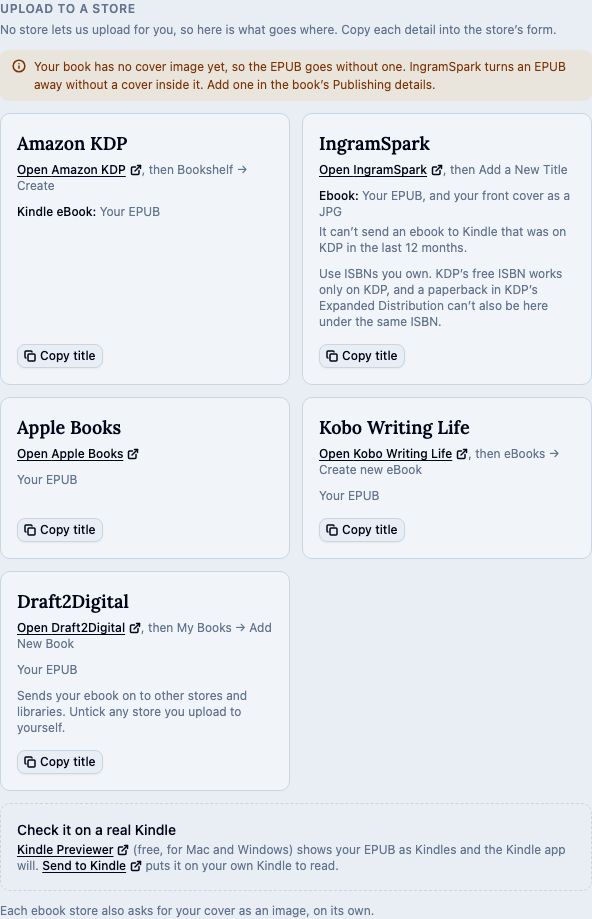
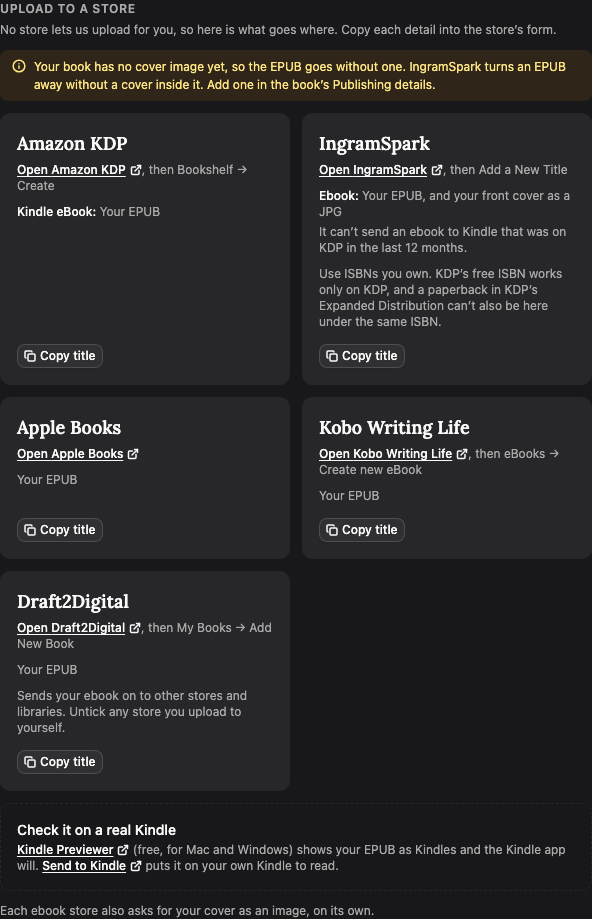
Under Upload to a store, each store’s card names the file each of its products takes and links to where its upload starts. Copy buttons put the book’s title, subtitle, and the right ISBN on your clipboard, with the ISBN as digits only.
- Amazon KDP (kdp.amazon.com, then Bookshelf → Create): a Kindle eBook takes your EPUB. A paperback takes your print PDF and a full cover PDF (back, spine, and front), and KDP asks which paper to print on, usually cream for a novel. A hardcover takes the same print PDF and a cover made from KDP’s cover template, at 5.5 × 8.5 or 6 × 9 in and 75 to 550 pages, with its own ISBN.
- IngramSpark (ingramspark.com, then Add a New Title): reaches bookshops and libraries. A paperback or hardcover takes your print PDF and a cover made on IngramSpark’s own template. An ebook takes your EPUB and your front cover as a JPG, and it can’t send an ebook to Kindle that was on KDP in the last 12 months. Use ISBNs you own, since KDP’s free ISBN works only on KDP.
- Apple Books (authors.apple.com): takes your EPUB.
- Kobo Writing Life (kobo.com/writinglife, then eBooks → Create new eBook): takes your EPUB.
- Draft2Digital (draft2digital.com, then My Books → Add New Book): takes your EPUB and sends it on to other stores and libraries. Untick any store you upload to yourself.
Each ebook store also asks for your cover as an image, on its own. If your book has no cover image yet, the EPUB goes without one, and IngramSpark turns such an EPUB away. Add one in the book’s Publishing details.
Get the sizes for your cover
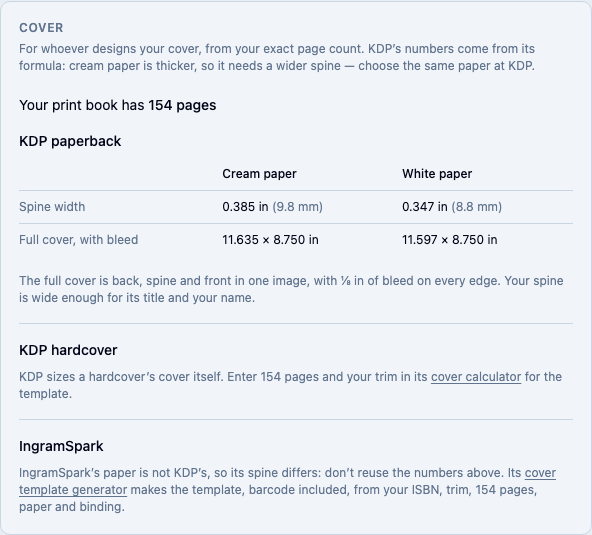
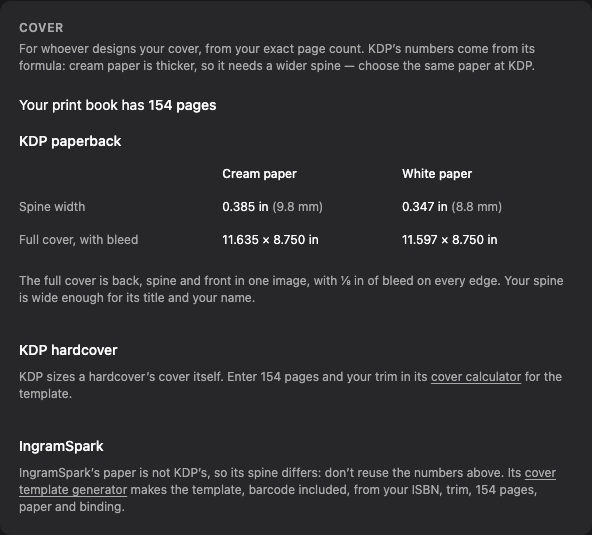
On a print export, the Cover panel on Publish gives whoever designs your cover the numbers they need, from your book’s exact page count. Publish typesets the whole book to count them, which can take a few seconds for a long book.
For a KDP paperback, it shows the spine width and the full cover size with ⅛ in of bleed on every edge, for both cream and white paper. Cream paper is thicker, so its spine is wider. Choose the same paper at KDP that your cover was made for.
Notes appear when a book is under KDP’s 24-page minimum, over its maximum (776 pages on cream, 828 on white), or under about 80 pages, which is too thin for text on the spine. They never stop you downloading.
A KDP hardcover’s cover comes from KDP’s own cover calculator, which the panel links to. IngramSpark’s paper differs from KDP’s, so its spine differs too: use its cover template generator, also linked, rather than KDP’s numbers.
Use the right ISBN for each file
Each file carries its own ISBN from the book’s Publishing details. The EPUB’s copyright page prints the EPUB ISBN. The print PDF prints the paperback ISBN, or, when you’ve filled in both, the paperback and hardcover ISBNs, each labelled with its binding.
Check your book on a real Kindle
Kindle Previewer (free, for Mac and Windows) shows your EPUB as Kindles and the Kindle app will. Send to Kindle puts it on your own Kindle to read. Both are linked under the store cards.
Related
Was this helpful?
Thanks for letting us know.