Leaving jots in your manuscript
How to write a jot in a line or on its own lines, give it a kind, show or hide jots, find one from the Jots tab or Jots page, and what happens to jots when you export.
What a jot is
A jot is a quick note to yourself, left right in your text, to come back to later. Jots aren’t part of your book, so you can keep writing and deal with them when you’re ready.
Use a jot for anything you don’t want to stop for:
- A to-do: “add more description here”.
- Research: “what would their clothes have been made of?”
- A fix: “this scene drags, shorten it”.
- A gap to fill: “chase scene goes here”.
- A reminder: “she hasn’t told Tom yet”.
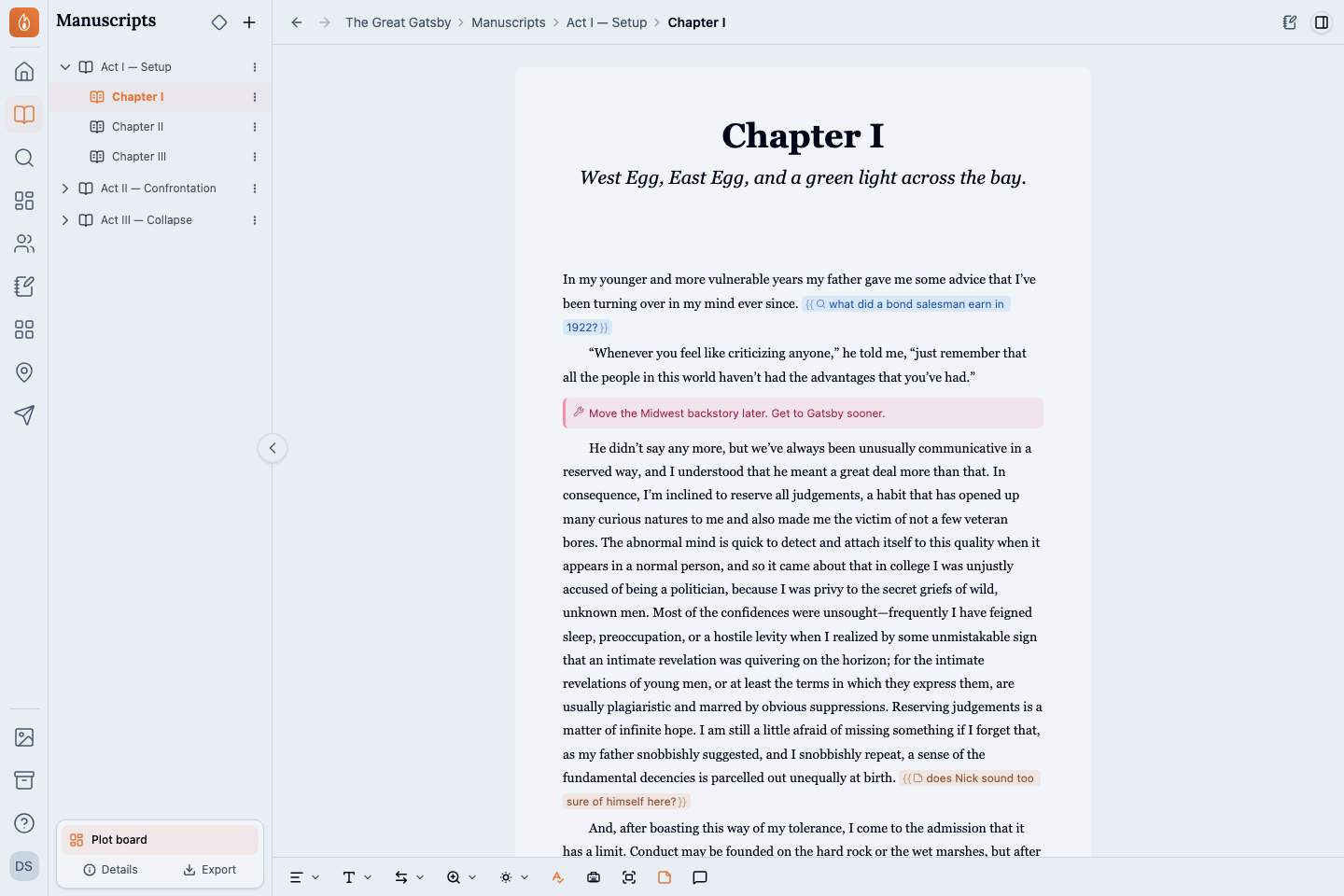
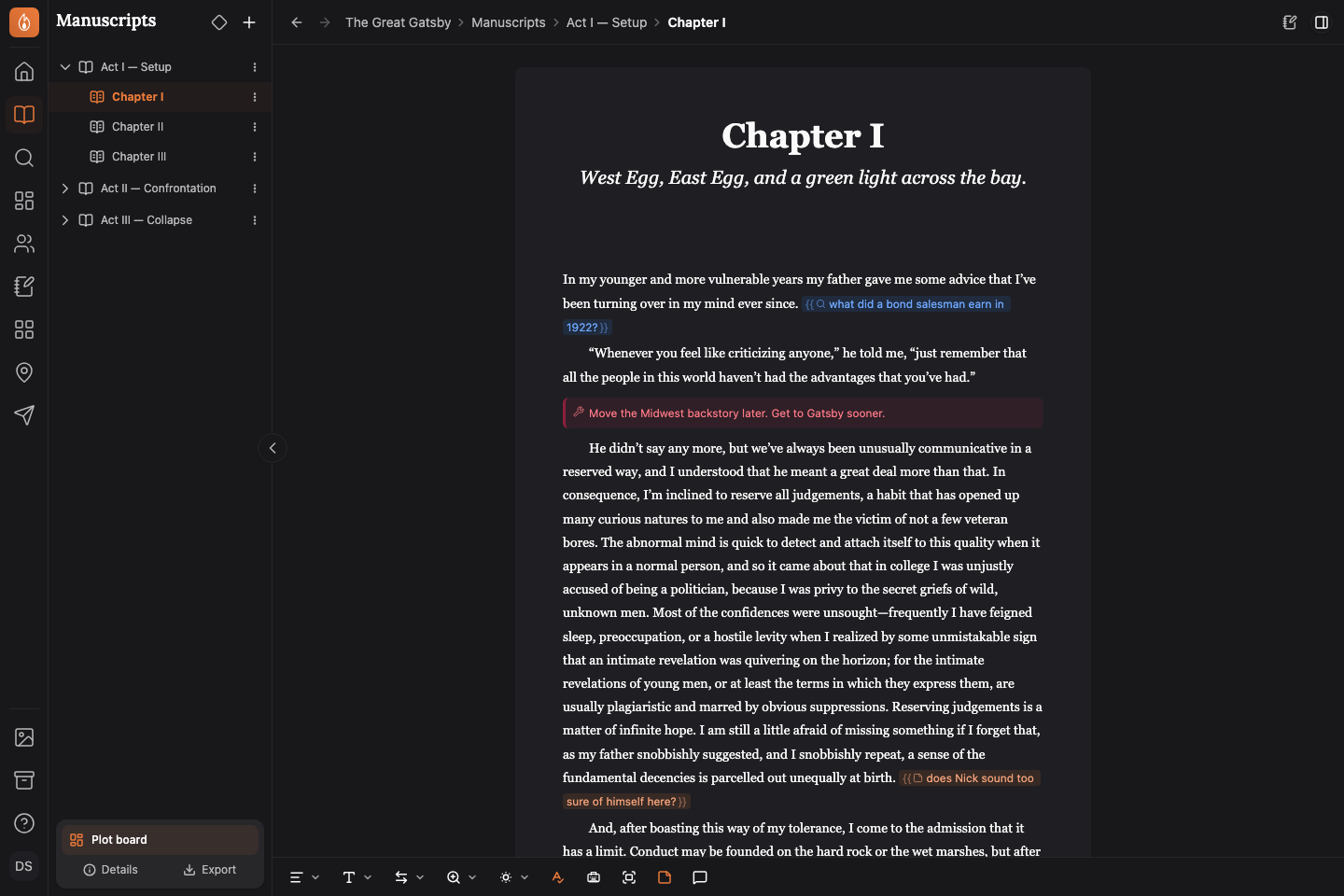
Write a jot in a line
- Type
{{anywhere in a line, or press ⌘J (Ctrl+J on Windows). - Write your note.
- Type
}}, or press Enter, Tab, Esc, or →, to go back to your prose.
To make a jot from words you’ve already written, select them and press ⌘J.
Write a longer jot on its own lines
Press ⌘J (Ctrl+J on Windows) on an empty line. This starts a block jot, which can hold paragraphs and lists.
Press Tab or Esc to leave it. The cursor moves to a new line after the jot.
Go back into a jot
Click at the end of a jot, or move the cursor there with the arrow keys, and keep typing. Your words join the jot.
Text you type at the very start of a jot is prose, not part of the jot. To start a new jot right after an old one, press → before you type {{.
Give a jot a kind
A kind says what a jot is for: Research, Fix, Write later, or Note to self. A new jot has no kind.
- Show your jots if they’re hidden. See Show or hide jots.
- Select the icon at the start of the jot.
- Choose a kind. Choose the same kind again to clear it.
To start a jot with a kind, type / and the kind’s name, such as /research.
Turn a jot into text or delete it
Select the icon at the start of a jot to open its menu.
- Turn into text keeps the words and makes them part of your book.
- Delete jot removes the jot and its words.
Show or hide jots
Jots start hidden, so you read your book as a reader will. A hidden jot leaves no mark in the text.
To show them, select Show jots in the editor footer, the sticky note button. You can also turn on Show jots in the text at the top of the info bar’s Jots tab. They’re the same setting, remembered on each device.
The jot you’re typing in always shows. When jots are hidden, it goes out of sight as you leave it.
Find a jot
Open the info bar and select the Jots tab. It lists the jots in what you have open. Whole project lists them all, and in a series, This book lists one book’s. Filter by kind narrows the list.
Select a row to go to that jot, with the cursor at its end. This also works while jots are hidden.
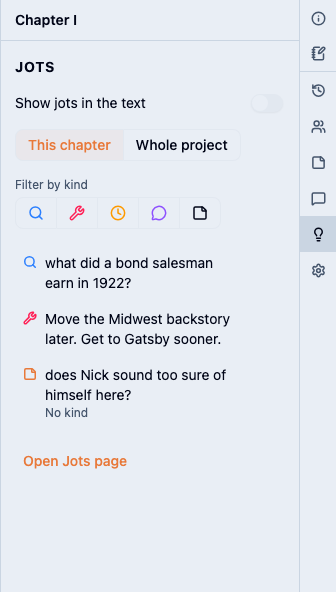
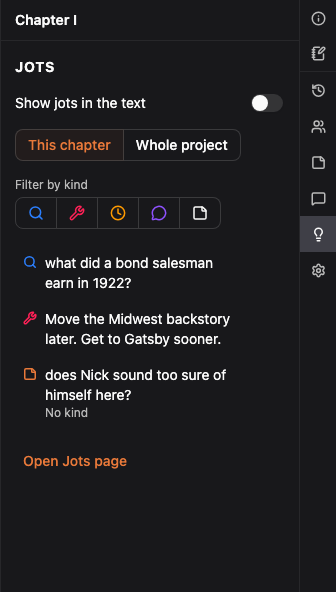
To see every jot chapter by chapter, select Open Jots page at the bottom of the tab.
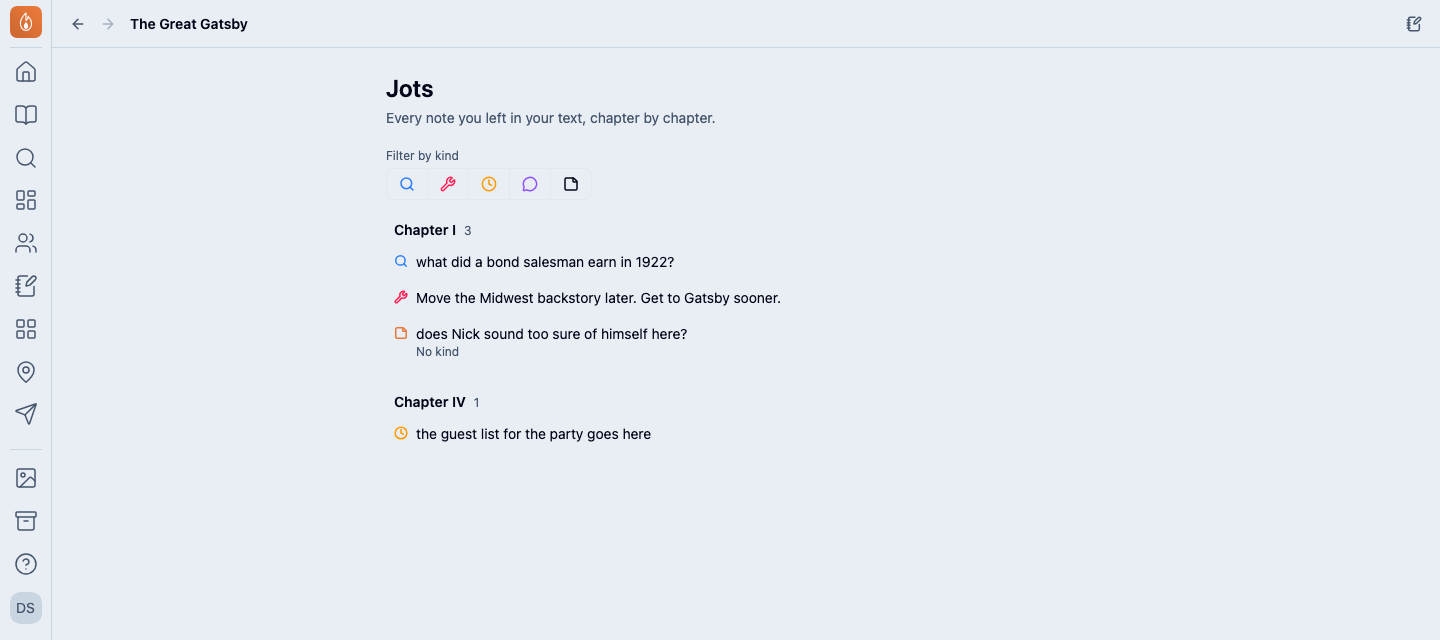
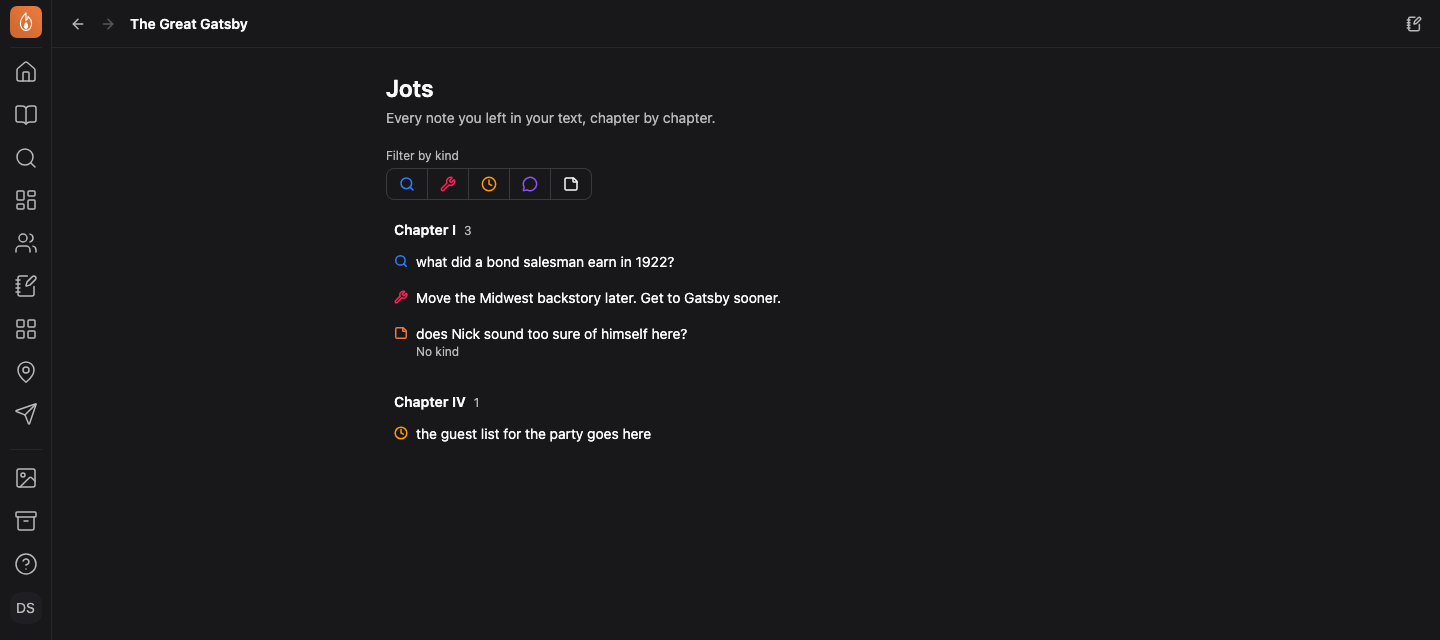
Change a jot from the list
Set a jot’s kind or delete it without leaving your place.
- Hover over a row in the Jots tab or on the Jots page.
- Select the … menu.
- Choose a kind or Delete jot.
If the jot’s chapter isn’t open, deleting asks first, because Undo can’t bring it back. Editors and beta readers don’t have this menu.
What happens to jots when you export or share
Jots stay out of your book unless you ask for them:
- Word count: jots aren’t counted.
- Search: jots aren’t searched.
- Ebooks and print books: jots are left out. The Publish step tells you how many are left in the book.
- Word files: jots are left out unless you turn on Jots as comments.
- Beta rounds: jots are left out unless you turn on Share jots with readers.
- Your project archive: jots stay in the Markdown files, since that copy is yours.
If you import from Scrivener, its inline annotations arrive as jots.
Related
Was this helpful?
Thanks for letting us know.