Searching your manuscript
Search finds every place a word or phrase appears in your manuscript, including chapter titles and synopses, and takes you straight to it.
Search finds every place a word or phrase appears in your manuscript and takes you straight to it.
Open Search
Select the magnifying-glass icon in the left rail, just below Manuscripts, or press ⇧⌘F (Ctrl+Shift+F on Windows) from anywhere in the project. Search opens in the sidebar in place of your manuscript tree.
To close it, select the ✕ at the top of the panel, select the Search icon again, or choose any other icon in the rail.
Search is for the project’s owner and collaborators. Editors and beta readers reviewing a draft don’t have it.
Find a word or phrase
Type into the search box. Results appear once you pause typing.
Search looks through your manuscript’s prose, and through the names, titles, subtitles, and synopses of your books, parts, chapters, and scenes. It finds exactly what you type, spaces and punctuation included, and ignores capital letters unless you ask it not to. Notes, characters, plot beats, and archived scenes aren’t searched.
Two buttons at the right end of the search box narrow the search:
- Whole word: finds the word only on its own, so “Tom” no longer finds “tomorrow”.
- Match case: finds only the capitals you typed, so “Rose” finds the character and not the flower.
In a series, a Book menu below the box searches one book instead of all of them.
New writing is found as you type it, before it saves.
Read the results
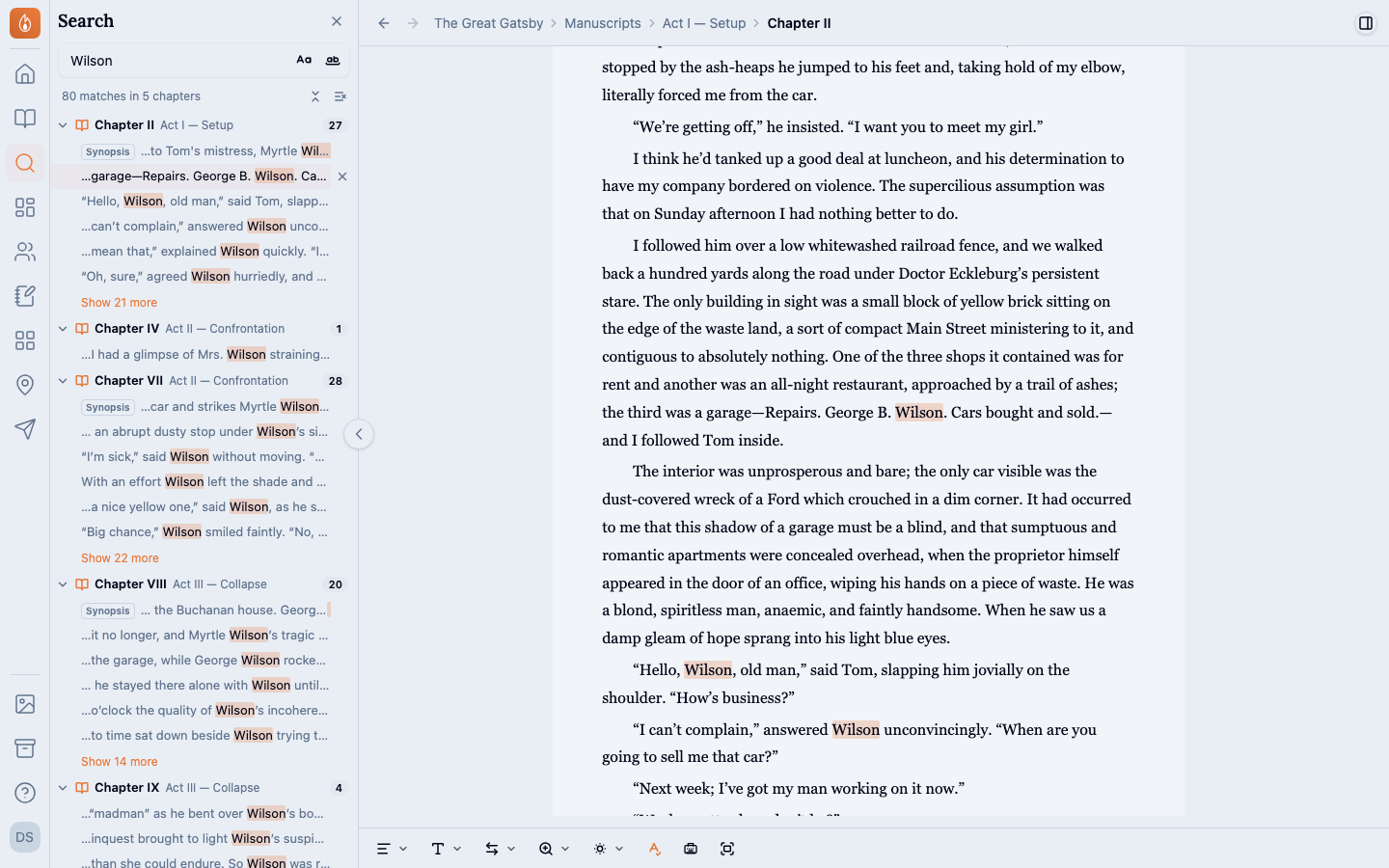
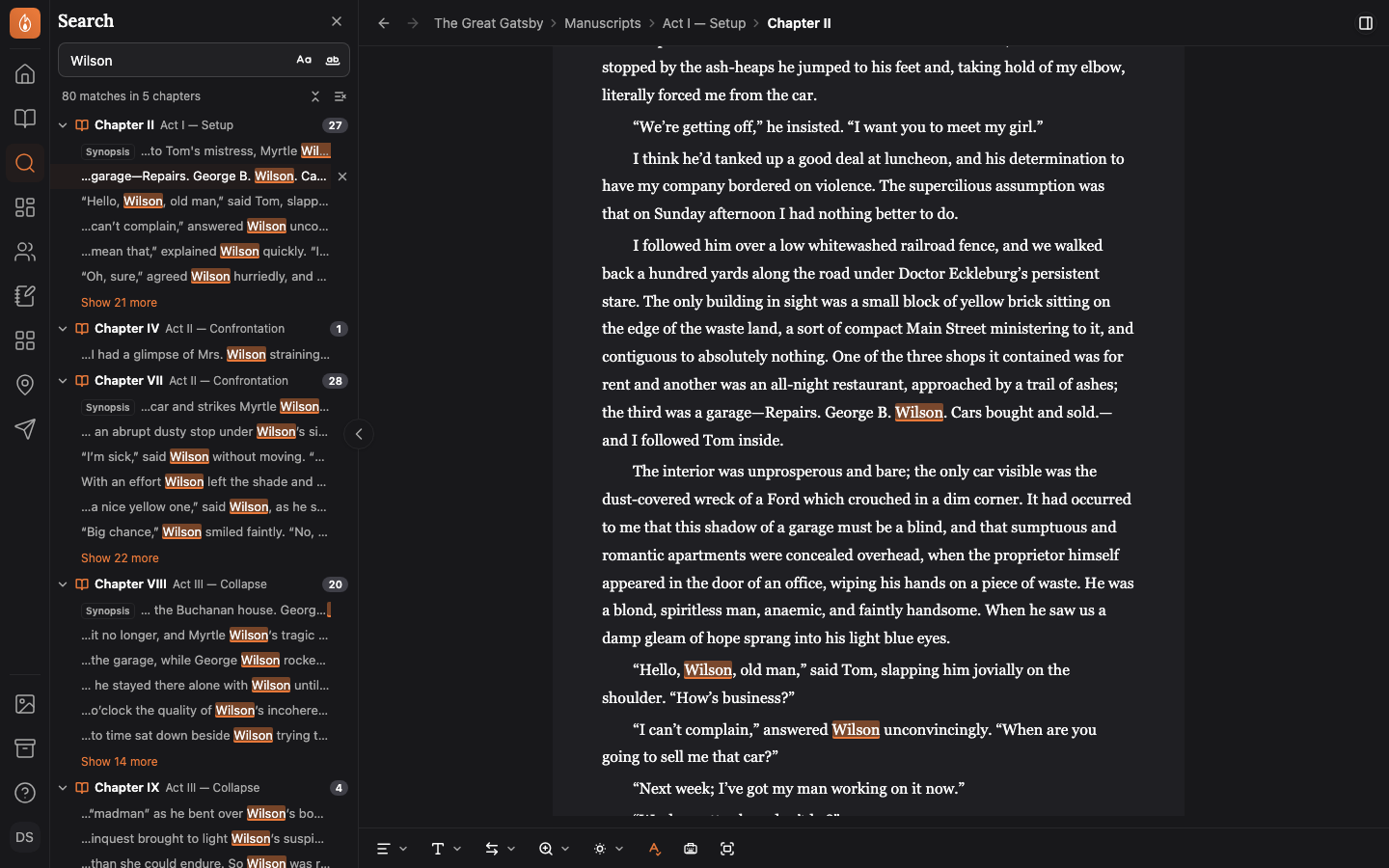
Results are grouped by chapter, in the order they appear in your book. A chapter with several scenes is listed scene by scene. The line above the list sums it up: searching The Great Gatsby for “Wilson” gives “80 matches in 5 chapters”. Each chapter’s row shows the part it’s in and how many matches it holds.
- Fold a chapter: select its row to hide its matches, or use Collapse all above the list.
- See more: each chapter lists its first six matches. Select Show more under it (it reads, for example, Show 12 more) to list the rest.
- Titles and synopses: a match there is tagged Title or Synopsis.
- Hide a match: point at a match you’ve dealt with and select its ✕. The chapter’s count goes down with it.
- Clear search: empties the box and the list.
Up to 500 matches are listed at once, shared out across your chapters, so a common word still lists every chapter that uses it, each with its full count. Show more under a chapter lists the rest of that chapter.
Hidden matches and folded chapters reset with each new search.
Search while offline
Search works without a connection. It looks through the copy of your manuscript kept on your device, which is also why results appear as soon as you pause typing.
Endra fills that copy in the background a few seconds after a project opens. Until it has, Search looks through the scenes that have arrived and says how many it couldn’t, for example “3 scenes aren’t on this device yet, so they weren’t searched.” Offline, the note reads “aren’t available offline” instead. Open a missing scene once while online and it’s searched from then on. See Working offline for how that copy is kept.
Jump to a match
Select a match to open the chapter or scene it’s in. The page scrolls to the paragraph and the match lights up for a moment. The list stays open, so you can work through the matches one after another.
A match in a chapter’s title or synopsis opens that chapter’s Chapter details page instead, where the title and synopsis live. A synopsis match scrolls to the synopsis and outlines it. A match in a scene’s own synopsis opens the scene.
See every match on the page
While Search is open, every match on the open page is highlighted. The highlights follow the Whole word and Match case buttons, and a match you type into the scene lights up as you write it. Clear the search box or close Search to remove them.
A character you named with an @mention is found by Search but isn’t highlighted on the page.
Was this helpful?
Thanks for letting us know.