Spelling and grammar checking
Endra Studio checks spelling and grammar as you write, with a per-project dictionary for invented words, an ignore list for flags you disagree with, and a choice of American, British, Canadian, or Australian English.
Endra Studio checks your spelling and grammar as you write, in your manuscript and in notes. Misspellings get a red underline, grammar flags a blue one.
Checking runs inside your browser rather than on a server, so it works offline and your prose is never sent anywhere to be checked.
Swearing is never flagged. Profanity is dialogue and characterisation in fiction, not an error, so the checker leaves it alone.
Fix a flagged word
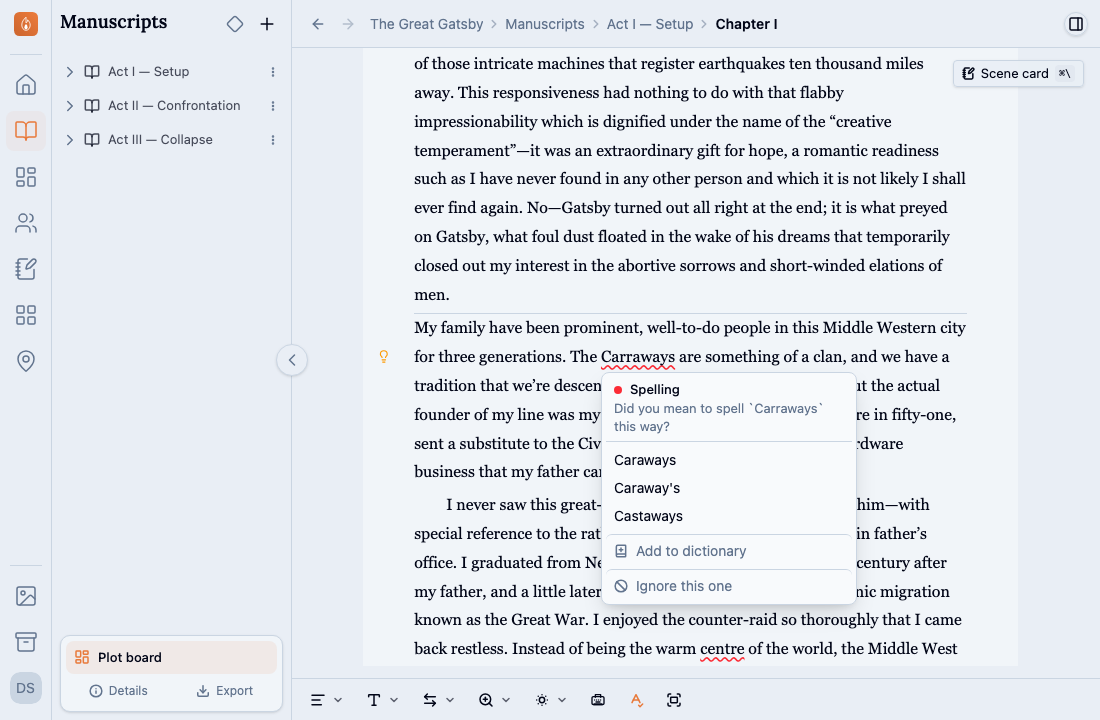
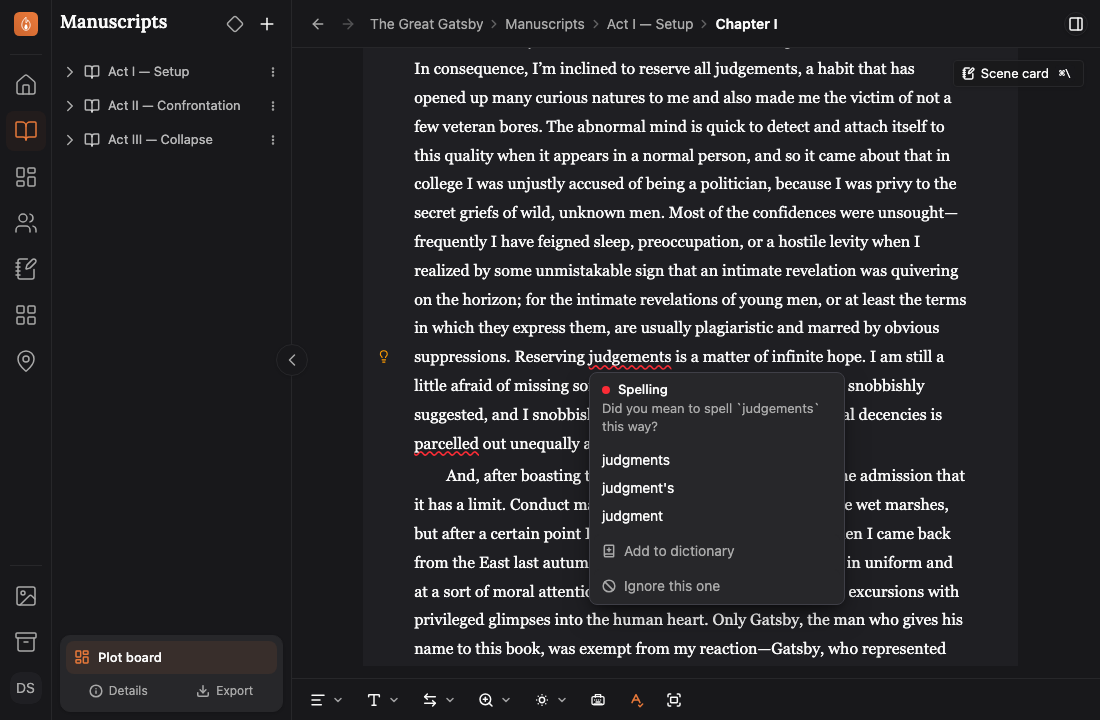
Click a flagged word and a small lightbulb appears in the left margin, level with that line. Click the lightbulb for a menu of suggestions, then pick one. Right-clicking the word skips the lightbulb and opens the menu directly; right-clicking anywhere else gives you your browser’s usual menu.
Clicking the word puts your cursor in it as normal, so you can also just retype it and carry on. The menu stays out of the way until you ask for it, and goes away again as soon as you start typing.
The menu is opened by clicking — there’s no keyboard shortcut for it yet. Once it’s open, Escape closes it and puts your cursor back in the text.
Turn checking off
The toggle sits in the editor footer, and Ctrl+Shift+S does the same thing from the keyboard. Turning checking off clears every underline until you turn it back on.
This is a per-device choice that applies everywhere you write, and it stays put after a reload.
Add a word to your dictionary
Character names, invented places, and the vocabulary of your world are all going to be flagged as misspellings. Click the underline and choose Add to dictionary and the word stops being flagged, however you capitalize it.
The dictionary belongs to the project, so a name you add to one book is not added to the others.
Manage your project’s dictionary
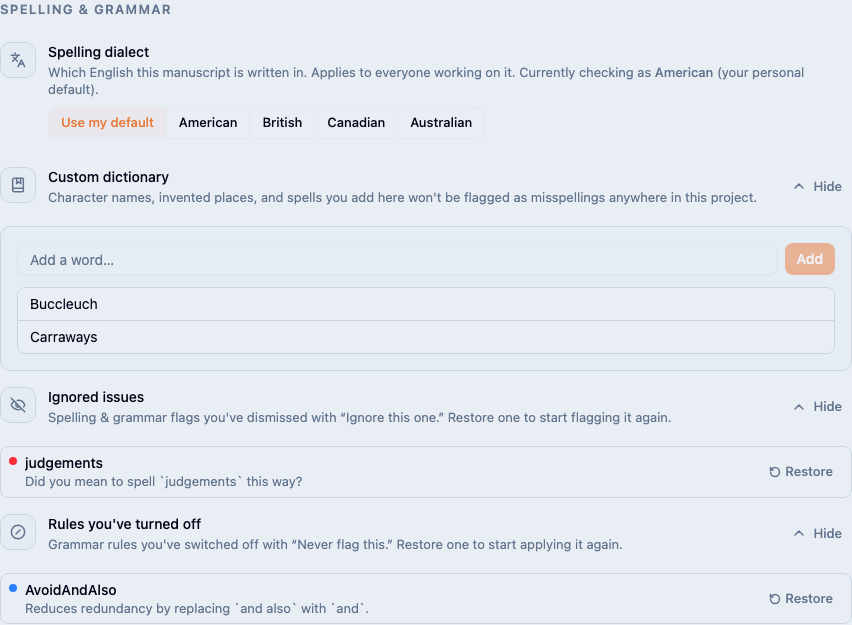
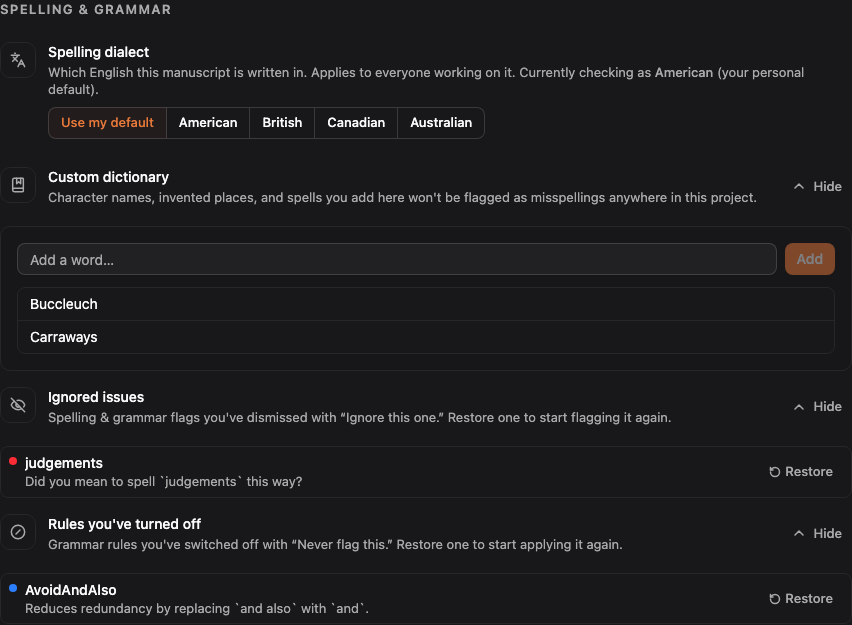
Every word you’ve added is listed under your project’s settings, on the Project Home page. Click a word to rename it, which is what you want if you added a typo by mistake, or remove it to start having it flagged again.
You can also add words here directly, without waiting to run into them in your prose.
Ignore a flag you disagree with
Some flags are wrong, and some are deliberate. Open the menu and choose Ignore this one and that flag stops appearing for good. It works on grammar flags as well as spelling, which makes it the way to dismiss a grammar hint you’ve decided against.
Ignoring is per project, and everything you’ve ignored is listed under your project’s settings with a Restore button, so a flag you dismissed too quickly can be brought back.
Stop a grammar rule firing at all
Ignore this one dismisses a single flag. When it’s the whole rule you disagree with — a comma convention you don’t follow, a word choice you use on purpose — open the menu on a grammar flag and choose Never flag this. That rule stops applying anywhere in the project.
This is for grammar only. A misspelling isn’t a rule, it’s a word the dictionary hasn’t seen, so the answer there is Add to dictionary.
Every rule you’ve switched off is listed under your project’s settings as Rules you’ve turned off, each with a Restore button.
Choose which English
Spelling is checked against American, British, Canadian, or Australian English. In British, colour and theatre are correct; in American they’re flagged.
Your personal default lives in your account’s editor preferences and applies to every project you open. A single project can override it from its own settings, which is what you want when one manuscript follows a different standard from the rest of your work. Projects start with no override, so they follow your default until you set one.
A project’s dialect applies to everyone working on it, so a manuscript written in British English stays British for your collaborators too.
Was this helpful?
Thanks for letting us know.