Importing an existing manuscript
Bring a Word or plain text manuscript into Endra Studio and it arrives split into chapters and scenes.
If your book already exists in Word, you can bring it in as it is. Endra Studio reads the file and shows you the structure it found before anything is created.
What you can import
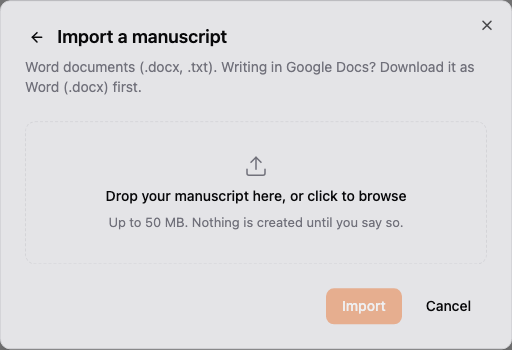
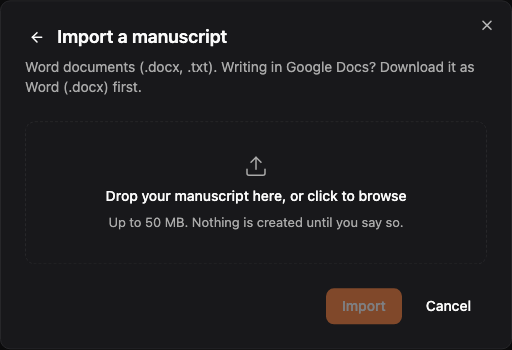
Word documents (.docx) and plain text files (.txt), up to 50 MB.
Google Docs works too. In Google Docs, choose File → Download → Microsoft Word (.docx) and import the downloaded file.
The older .doc format can’t be read. Open it in Word, use File → Save As to save it as a .docx, and import that.
Import a manuscript as a new project
- From your dashboard, select New Project, then Import a draft.
- Choose your file.
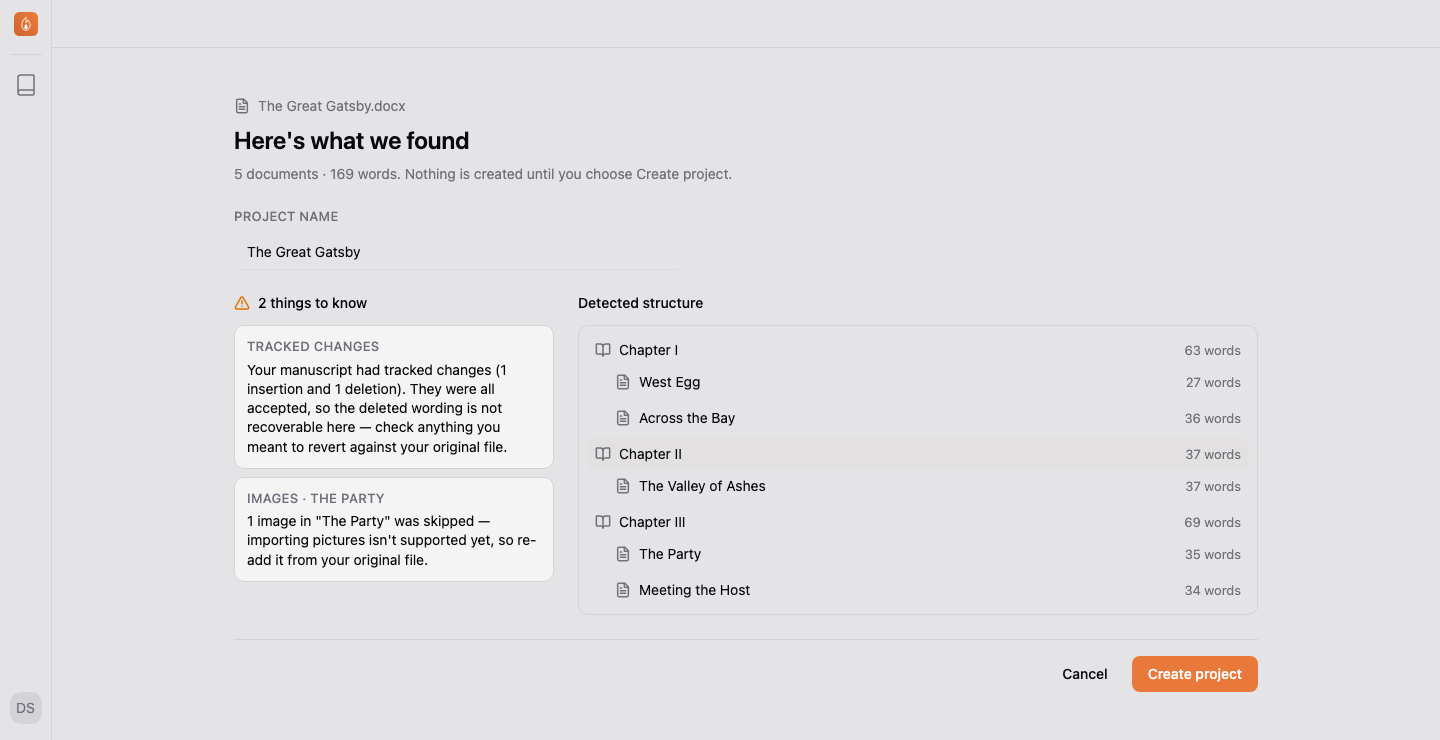
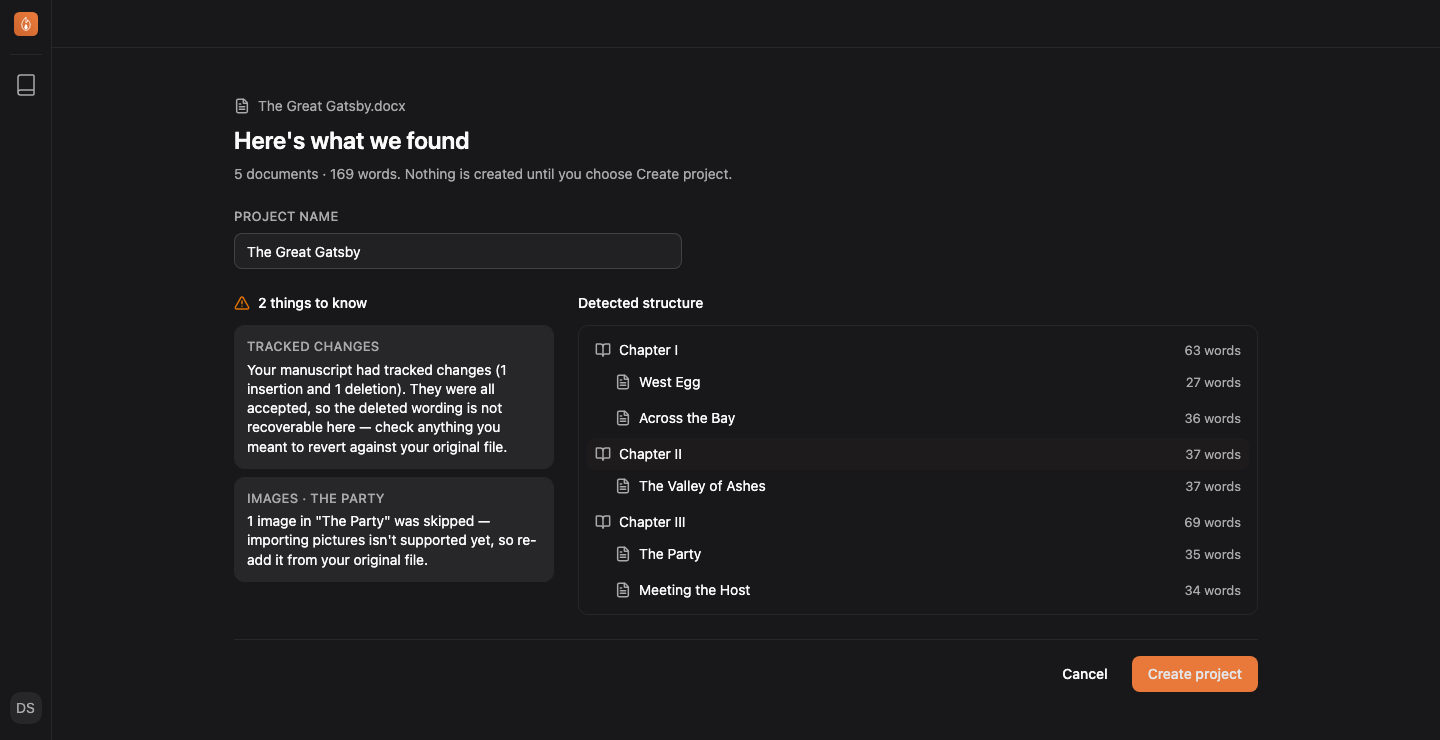
- Look over what was found, give the project a name, and select Create project.
You land in the new project with your manuscript already split into its documents.
How your chapters and scenes are worked out
Endra Studio reads the heading styles in your Word file and turns each heading into a document, using the levels you already used:
- One heading level becomes chapters. If you styled every chapter title as Heading 1 and nothing else, you get one chapter per title.
- Two levels become chapters with scenes inside them.
- Four levels fill out the whole structure: books, parts, chapters, and scenes.
Anything deeper than four levels becomes a heading inside the scene above it rather than a document of its own. Every word still comes across, and the review page names each level this happened to.
A custom style counts as long as it’s based on a built-in heading. If your “Chapter Title” style is based on Heading 1, its paragraphs are read as level-1 headings, and the review page tells you that’s what happened.
A line containing only *** or # is read as a scene break inside the prose rather than a new document.
If the file has no heading styles at all, Endra Studio splits it on lines that read like chapter titles, such as “Chapter One” or “CHAPTER XII” on a line of their own. If even that finds nothing, the whole file imports as a single document that you can split up by hand later. Either way, the review page says which of these happened so you can check the split before continuing.
Choose what a top heading level means
Most manuscripts import without asking you anything. The exception is a file with exactly three heading levels above the prose, where the top level could honestly be a Book, a Part, or not a structural level at all.
When that happens, the review page shows a small What is this level? picker on those rows, next to your real chapter titles, so you can see what the choice does. Choose Book or Part to keep the level, or Not structural to fold it away and move its contents up.
What can’t be carried across
Anything that couldn’t come with your manuscript is named on the review page rather than quietly dropped:
- Tracked changes are accepted, so the deleted wording isn’t recoverable in Endra Studio. Check anything you meant to revert against your original file.
- Comments are reported with enough of their content to recognize them.
- Images are skipped, listed by the chapter they were in, so you know where to re-add them.
- A paragraph or section that can’t be read is left out and reported by name; the rest of the manuscript still imports.
If none of that applies, the review page tells you so outright: nothing had to be dropped or changed.
Nothing is created until you confirm
The review page is a preview. Your project, chapters, and scenes are created when you select the button at the bottom, and cancelling creates nothing. Your uploaded file is encrypted while it waits and deleted from Endra Studio’s storage once the import finishes, whichever way it ends.
Import into a project you already have
You can also bring a file into a project you’re already working in, which is useful for a chapter drafted elsewhere or a research document you want alongside the manuscript.
Select the + button at the top of Manuscripts or Notes in the sidebar, then Import from a file…. The review page works the same way, and the button reads Add to project.
In a project you haven’t written in yet, project home offers Import a manuscript directly, which is the same import into Manuscripts.
Imported documents land at the top level of the section you started from, at the end. From Manuscripts, the file’s chapters arrive as chapters at the end of your manuscript. From Notes, you get one note per top-level heading, with any deeper headings folded into that note’s body. Nothing lands inside an existing chapter or folder, so move it where you want it afterwards, by dragging or from the item’s ⋮ menu.
When a file brings in more than one document, you’re offered a Keep these together in a new section named after the file tick box. It’s worth using for anything you might change your mind about: an import that landed wrong is then one section to archive instead of twenty separate documents. The trade-off is that everything sits one level deeper, so a whole-novel file keeps its chapters and scenes but its Book and Part headings are reported in the warnings instead of becoming folders.
Import runs on Endra Studio’s servers, so the option isn’t offered while you’re offline. Working offline covers what else waits for a connection.
An import can go to Manuscripts or Notes. Characters and the Plot Board aren’t import destinations.
Related
Was this helpful?
Thanks for letting us know.