Starting a board
A board is an open canvas for the thinking that comes before structure. Pin notes and images, and arrange them until the shape appears.
A board is an open canvas with no fixed order: put things anywhere, move them freely, and let the arrangement carry the meaning. Where the Plot Board holds your story in sequence, a board holds the thinking that hasn’t found its sequence yet.
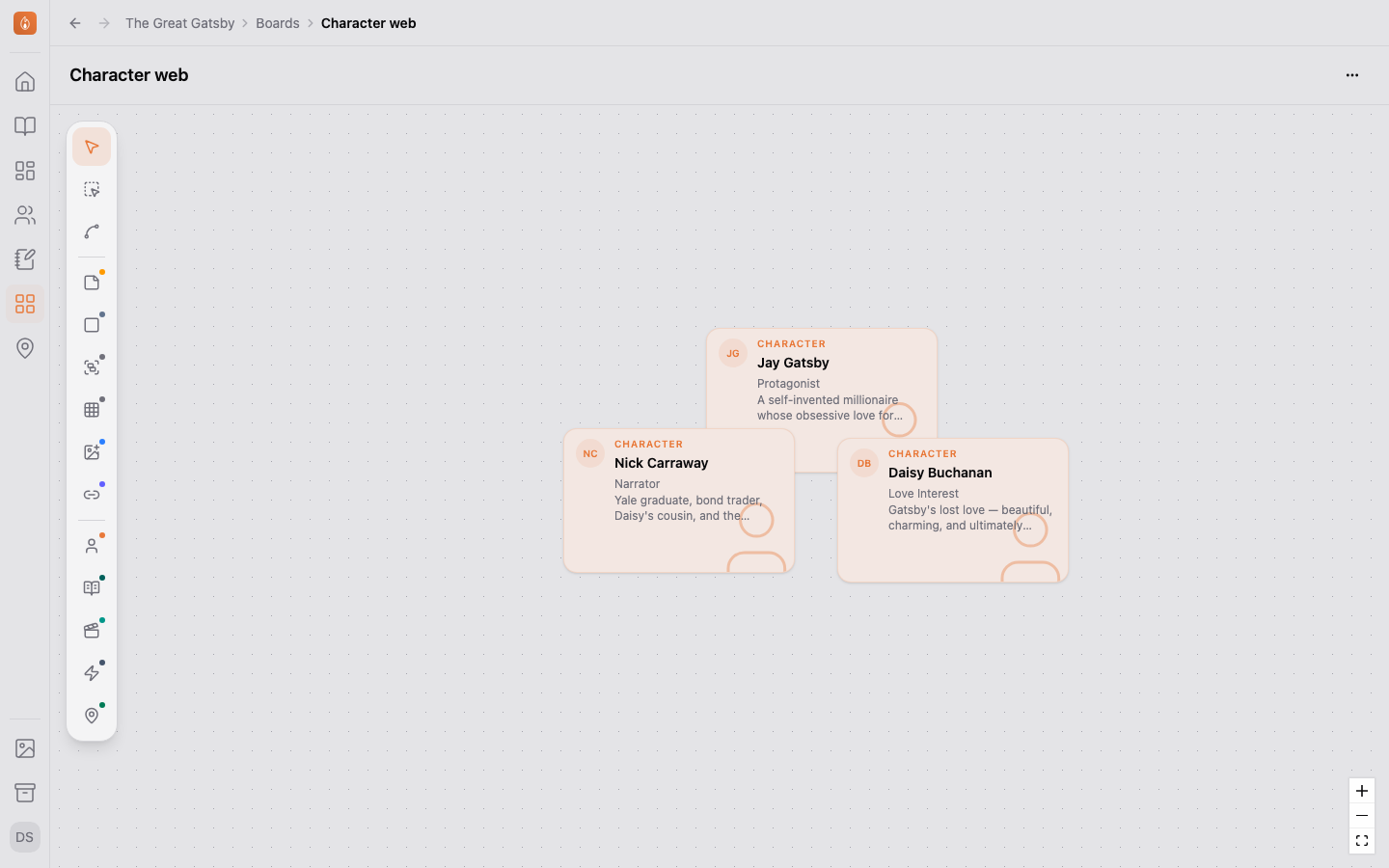
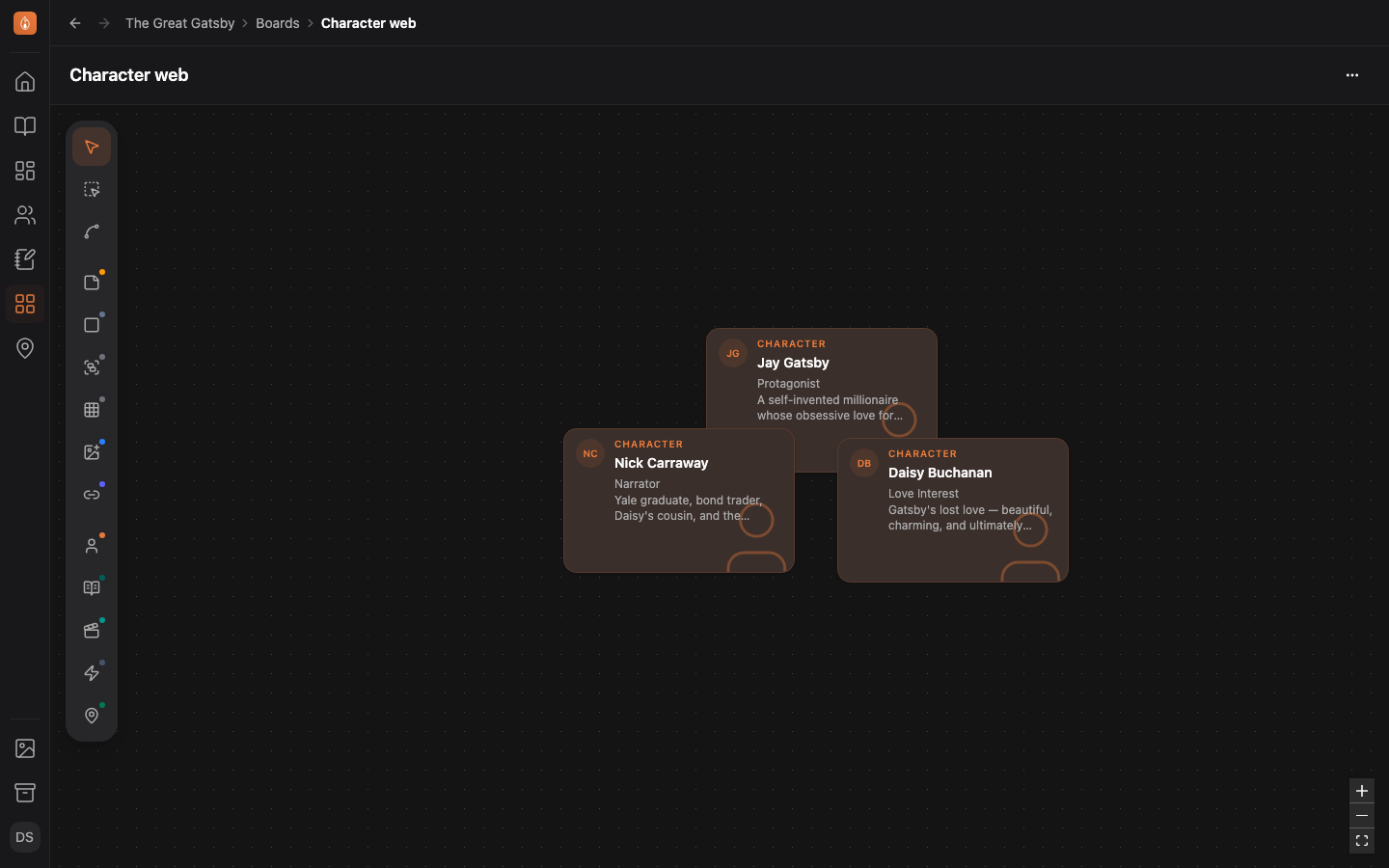
Create a board
Select Boards in the sidebar to open the gallery, then New Board. Start blank, or from a template. A project can have as many boards as you want: one for the murder timeline, one for the family tree, one per act.
Move around the canvas
Scroll to move around: two fingers on a trackpad, the wheel on a mouse, or sideways with a horizontal swipe or a tilt wheel. To zoom, pinch on a trackpad, or hold ⌘ (Ctrl on Windows) while you scroll. Dragging an empty part of the canvas moves it too.
While you zoom, the current percentage appears above the zoom buttons and fades once you stop.
Say what a board is about
A board can be attached to one character, scene, beat, location, or note — choose Attach to an entity… from the board’s menu. An attached board can be opened straight from that entity’s page, and it stays in the gallery either way. A board that’s about nothing in particular is fine too.
Work on a board together
Boards are collaborative the same way documents are: collaborators can work on the same board at the same time, and you’ll see each other’s cursors.
Archive a board
Choose Archive board from the board’s menu. Like everything else you archive, it moves to the project’s Archive, where you can restore it.
Related
Was this helpful?
Thanks for letting us know.